
Manage Automated Backups in Foundry
How to Check and Manage Automated Backups in Foundry
Section titled “How to Check and Manage Automated Backups in Foundry”EVLBOX provides automated backups for your Foundry VTT server to help ensure your campaigns and configurations are safe, even in the event of hardware failure. These backups are created and managed with minimal user input, but knowing how they work—and how to verify or manage them—can give you greater peace of mind.
Understanding EVLBOX Automated Backups
Section titled “Understanding EVLBOX Automated Backups”When you purchase a Foundry server from EVLBOX, a backup schedule is automatically created—usually within 6 to 12 hours. Here’s how it works:
- Backup Frequency: Every 2 hours
- Retention: 12 backup slots (1 full day of backups)
- Backup Contents: Only your saves, mods, and server configuration are included. Game files are not backed up.
- Backup Timing: Randomized to avoid conflicts with other servers on the same node
- Storage Location: Offsite at EVLBOX’s Canada Datacenter for high availability
🔒 When all 12 slots are used, the oldest backup is deleted first—unless it’s been manually locked by you.
How to Check if Backups Are Working
Section titled “How to Check if Backups Are Working”-
Login to the Nitro Control Panel
-
Select your Foundry server
-
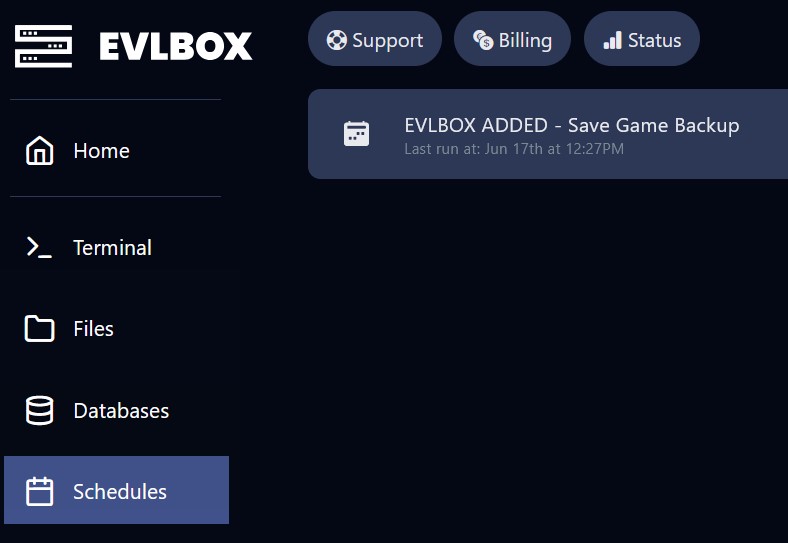
In the left-hand navigation, click on Schedules
-
Look for a job titled:
EVLBOX Added - Save Game Backup
This confirms that the automatic backup system is in place.
⚠️ Do not delete this job. If removed, EVLBOX will re-add it automatically.
How to Disable Automated Backups (Optional)
Section titled “How to Disable Automated Backups (Optional)”You may choose to manage backups manually using the 12 backup slots. To disable the automatic schedule:
-
Login to Nitro
-
Navigate to your server and select Schedules
-
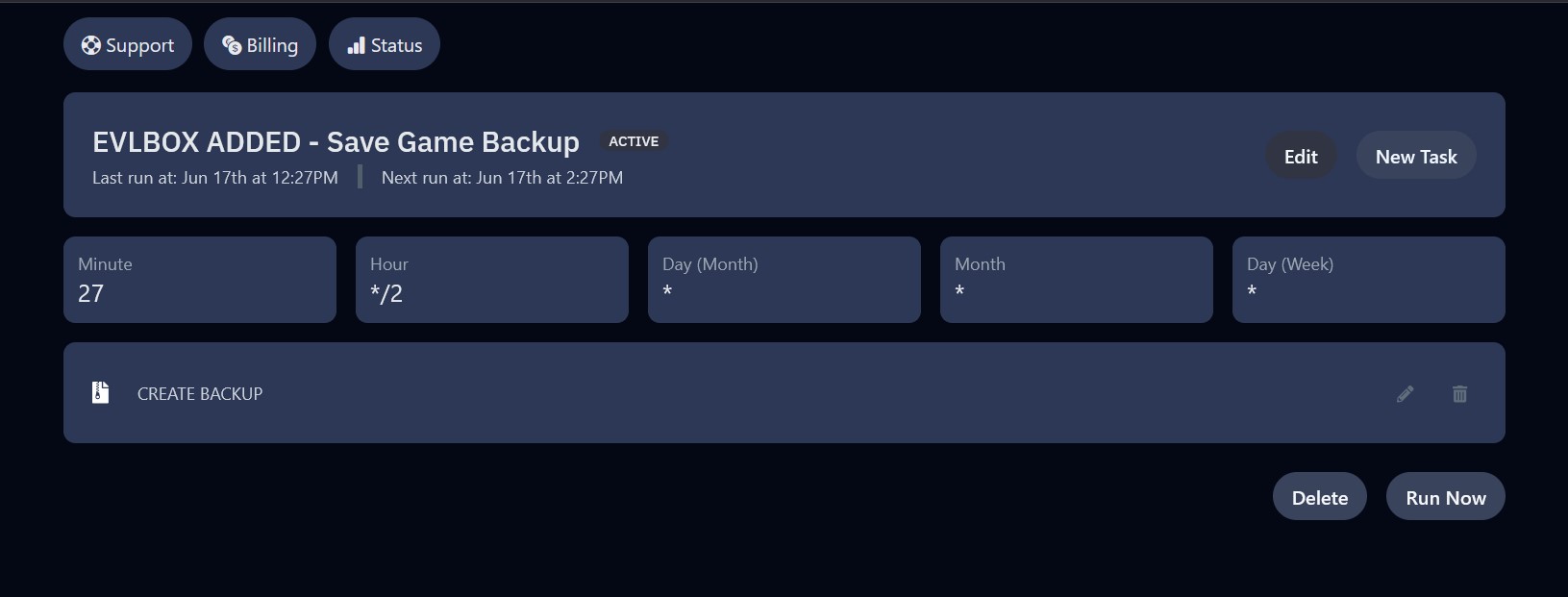
Find and click on EVLBOX Added - Save Game Backup
-
Click the Edit button next to the New Task button
-
Toggle off the Schedule Enabled option
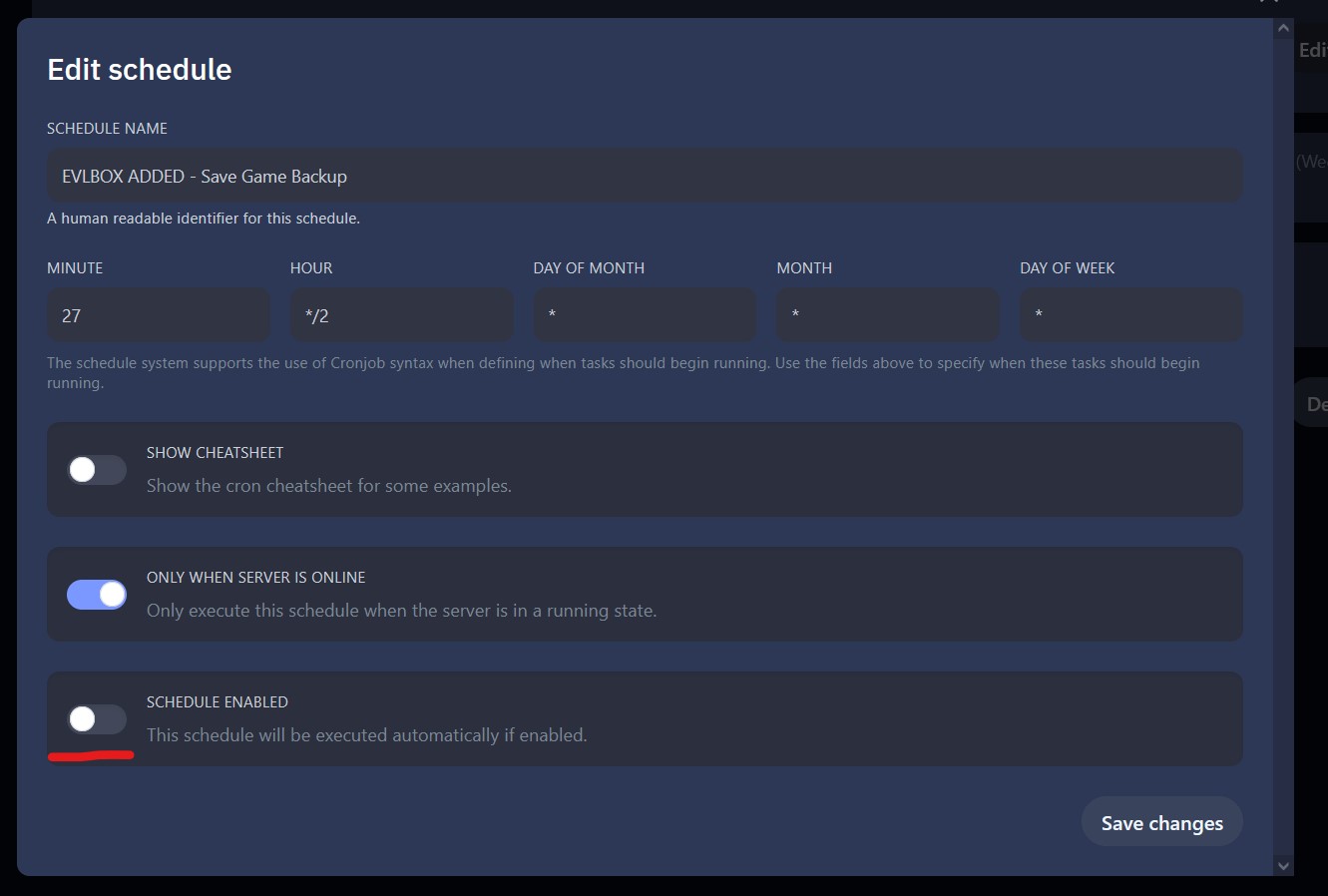
🚨 Disabling automatic backups reduces EVLBOX’s ability to help recover your server in the event of node failure. We strongly recommend creating your own schedule if you disable this one.
How to Download and Open Backup Files
Section titled “How to Download and Open Backup Files”-
Login to the Nitro Control Panel
-
Click on Backups in the server menu
-
Select a backup and click the three-dot menu to download the
.tar.gzfile -
Use a tool like 7-Zip to extract the archive (Windows compatible)
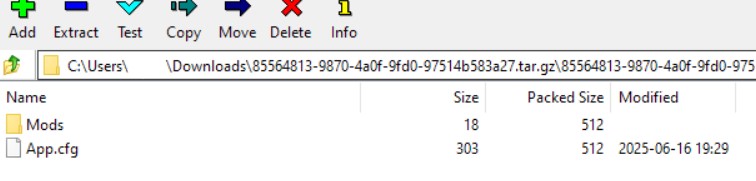
Inside the archive, you should find:
App.cfg(your server settings)- The
Modsfolder - Any user-added content from
mods-upload
Need Help or Want More Storage?
Section titled “Need Help or Want More Storage?”EVLBOX support is always here to help. You can also request more backup slots if needed for larger or more frequent campaigns.
Check out other Foundry Hosting Guides for more tips and support.