
How to Connect to your Enshrouded Server
Need a Enshrouded server? Spin one up with EVLBOX →
There are two ways into your Enshrouded server: search for it by name in the game’s server browser, or add its address as a Steam favourite. Both need a password from you, so set those first.
1. Set your server name and passwords
Section titled “1. Set your server name and passwords”- Log in to the Nitro Panel, click your Enshrouded server and open the Startup tab.
- Set Server Name. This is what people search for in the game’s browser, so make it specific.
- Set the Admin Password, Friend Password and Guest Password. There is no single server password in Enshrouded. The password you give someone decides what they can do on your server. See Admin, Friend and Guest Roles.
- Start, or restart, the server.
2. Join from the in-game server browser
Section titled “2. Join from the in-game server browser”- Launch Enshrouded and choose Join an Online Game.
- In Filter Server Names, type your server name, or part of it.
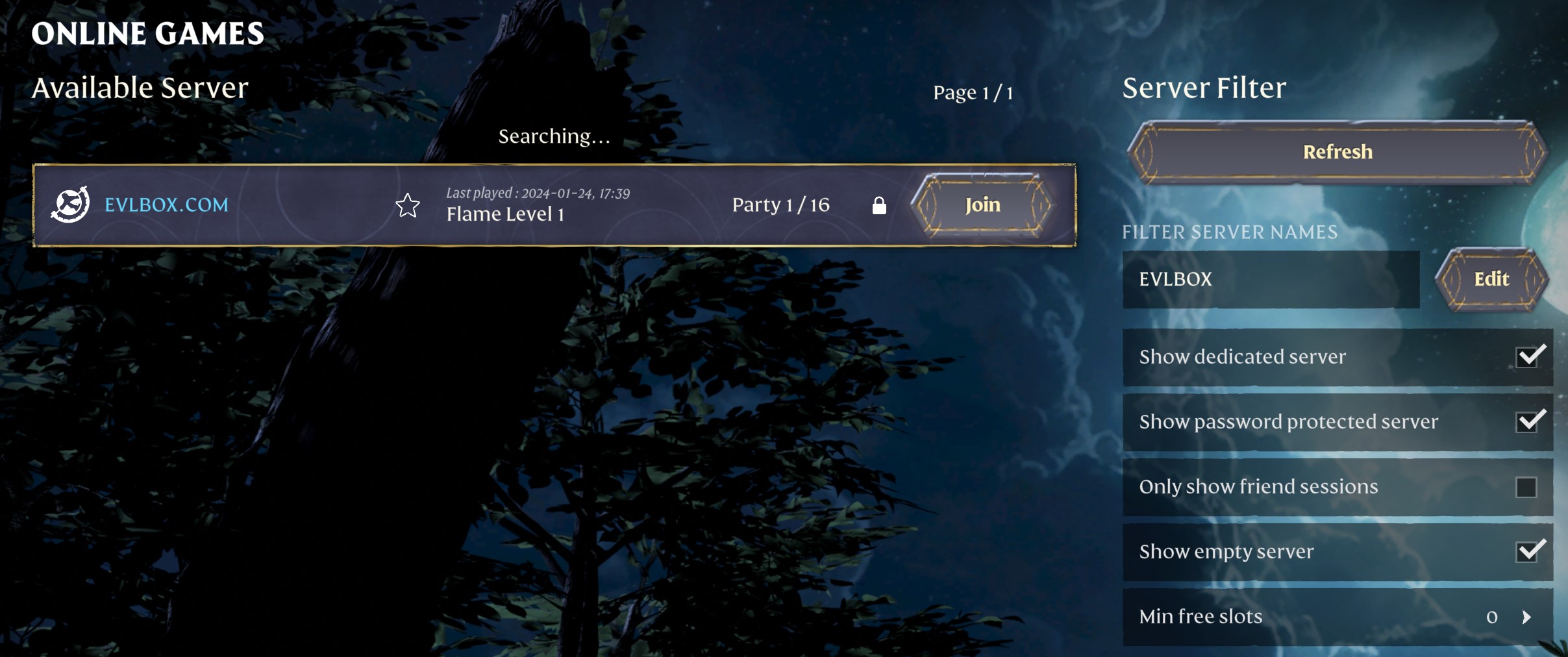
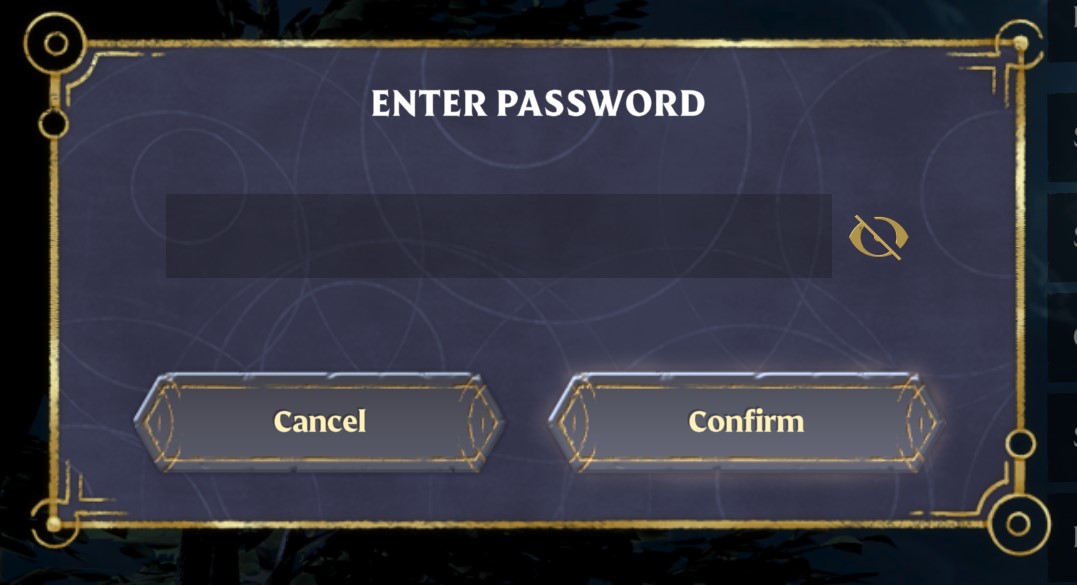
- Select your server and join. The game asks for a password. Enter the Admin, Friend or Guest password you were given.
3. Join by address through Steam
Section titled “3. Join by address through Steam”Use this if the browser is slow to list your server, or you want it saved for next time.
- In the Nitro Panel, open your server’s Console tab. Your Server address sits just under the Start, Restart and Stop buttons. Click it to copy the address and port together.
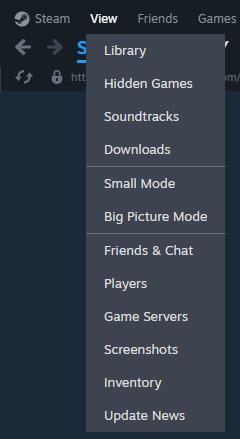
- In Steam, click View at the top and choose Game Servers.
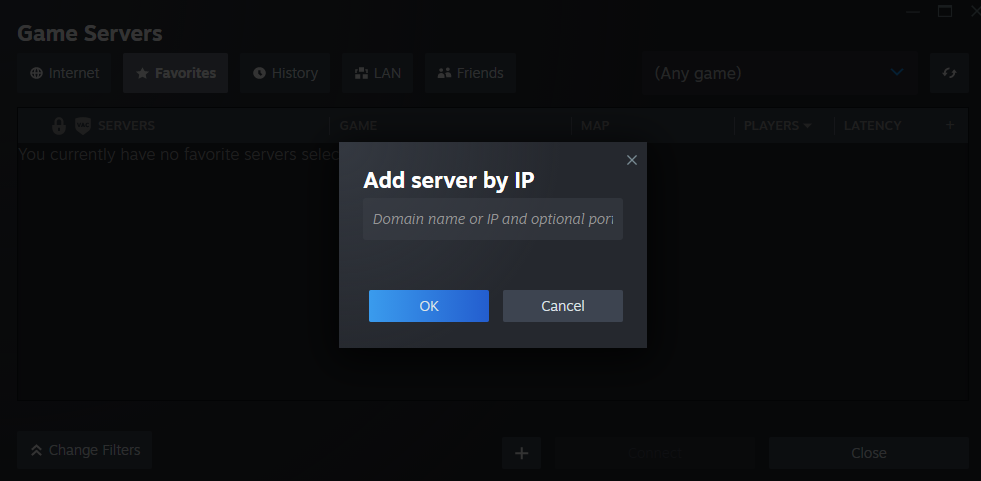
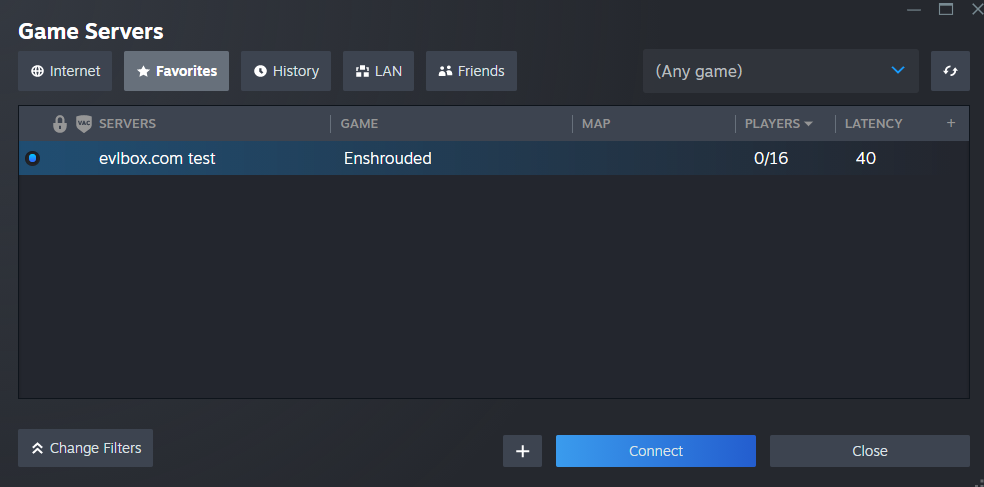
- Open the Favorites tab and click the + at the bottom. Paste the address, then click OK.
- Your server appears with its name, game and player count. Click Connect.
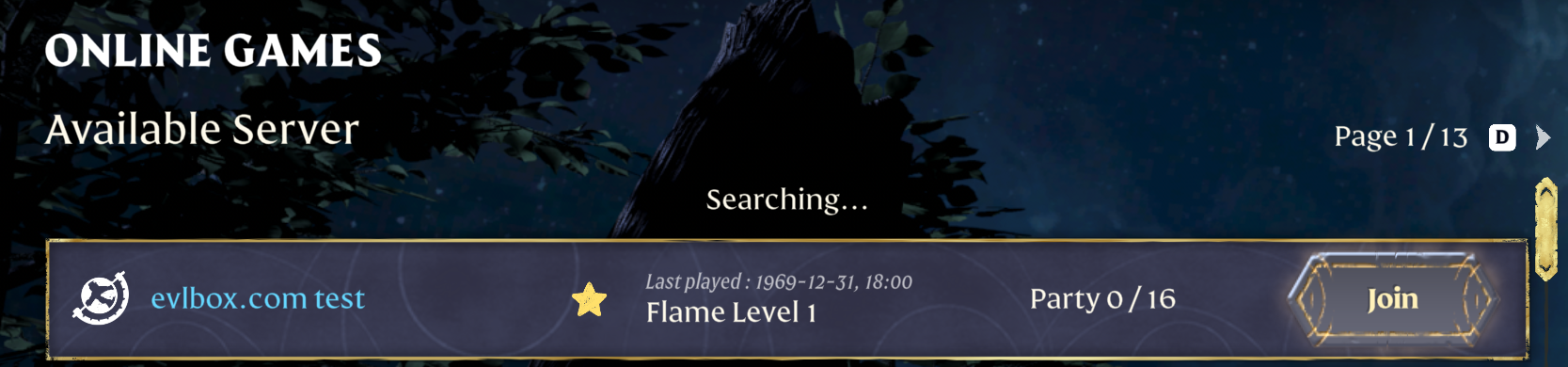
- The game launches with your server pinned at the top of the online list with a star. It stays there for every session after this one.
Troubleshooting
Section titled “Troubleshooting”| Issue | What to check |
|---|---|
| Server isn’t in the browser yet | On first start the game files are still downloading. Give it a few minutes and check the Console tab. Searching by the exact name helps once it is up. |
| Password rejected | You may have the wrong group’s password. Check which one you were given. If a password was recently changed on the Startup tab, it only applies after Settings, then Reinstall Server. |
| Kicked for a version mismatch | Your game updated before the server did. Restart the server to pull the latest build. Leave Auto Update on so this fixes itself. |
| Server shows full with free slots | Reserved slots are held back for the Admin and Friend groups. See Reserved slots. |
| Can’t open chests or build after joining | You joined with the Guest password. Guests can explore but not build or open containers. Rejoin with the Friend or Admin password. |
Questions? Reach out on the support Discord or create a ticket.