
First Time Setup - Tower Unite Condo Server
If you’ve just picked up a Tower Unite Condo Server from EVLBOX, this is your first stop. Your server is installed and will boot straight away, but it will not show up in the in-game condo list until you give it two login tokens. Everything on this page is done from the Startup tab in Nitro Panel.
Step 1: Create a Steam Game Server Login Token (GSLT)
Section titled “Step 1: Create a Steam Game Server Login Token (GSLT)”Visit Steam Game Server Token Management.
- Use App ID: 394690 (that is Tower Unite’s game App ID, not the server download).
- Add a short memo, e.g. “EVLBOX Condo”.
- Click Create and copy the 32-character token.

The token is tied to your Steam account, so EVLBOX cannot generate it for you. Each dedicated condo needs its own token.
Step 2: Generate a Tower Unite Server Token
Section titled “Step 2: Generate a Tower Unite Server Token”Visit Tower Unite Server Management and sign in through Steam.
- Click Add Server and copy the token it gives you.
Step 3: Enter the tokens in Nitro Panel
Section titled “Step 3: Enter the tokens in Nitro Panel”- Open your server in Nitro Panel and go to the Startup tab.
- Paste the GSLT from Step 1 into Steam Login Token.
- Paste the token from Step 2 into Tower Unite Login Token.
- Set Condo Title to the name you want in the condo list. Add
18+to the title if you host mature content, PixelTail delists unlabeled mature condos. - Restart the server. Startup settings are written into
TowerServer.inion every start.
Until both tokens are set the console shows this reminder each start, and the server runs as an unlisted condo:
[EVLBOX] WARNING: Steam Login Token / Tower Login Token are not set. The condo will run but will NOT appear in the Tower Unite condo list.Step 4: Give yourself admin
Section titled “Step 4: Give yourself admin”Admins can edit the condo, change settings, kick and ban. You need your SteamID64, the 17-digit number for your account:
- Open steamid.io (or steamidfinder.com), paste your profile link, and copy the steamID64 value.
- On the Startup tab, paste it into Admin SteamIDs. Several admins? Separate the IDs with commas:
76561198000000001, 76561198000000002. - Restart the server. Each ID is added to the
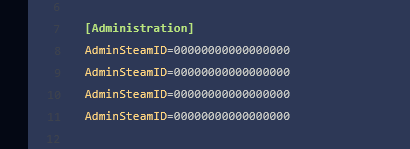
[Administration]section ofTowerServer.iniand the console confirms it:
[EVLBOX] Added admin 76561198000000001 to TowerServer.iniIDs are only ever added, never removed, so you can also manage the list by hand: open Files → Tower/Saved/Config/LinuxServer/TowerServer.ini and add one AdminSteamID= line per admin under [Administration]. Delete a line to remove that admin.
Once you are an admin, press Tab in your condo and open Settings → Player Permissions to hand out finer-grained permissions (build, move, moderator tag) to individual players without making them full admins.
Step 5: Pick your condo map
Section titled “Step 5: Pick your condo map”The Condo Map dropdown on the Startup tab chooses which condo the server runs: Condo, House, Smooth Dirt, Suite, Resort, Smooth Autumn, Underwater, Highrise, Art Studio, Theatre, Courtyard or Ice Moon. The list shows the game’s internal names (C_Condo, C_House, …); the full translation table is on the Condo Maps & Save Files page.
If you have not uploaded a save yet, the map starts as a fresh, empty condo. On that first start the console prints FAILED TO LOAD CONDO DATA: ../../../Tower/Condos/C_Condo/C_Condo.map once; that is expected when the file does not exist yet. Anything built on the server is saved into Tower/Condos/<Map>/<Map>.map from then on.
Step 6: Start and find your condo
Section titled “Step 6: Start and find your condo”Start the server and wait for the console to print Engine Initialization. In Tower Unite, open the condo browser; your condo appears under the title you chose. Press Tab in the condo for the scoreboard, where the gear icon gives you the condo settings and the Saves menu.
Importing an existing condo from single player
Section titled “Importing an existing condo from single player”Built something in single player that you want online? Move the save over.
Export the condo in-game
Section titled “Export the condo in-game”- Load your condo in Tower Unite.
- Press Tab, then Saves → Export Condo.
- The game writes a
.mapfile toTower Unite/Workshop/Condo Exports/inside your Steam library (usuallyC:\Program Files (x86)\Steam\steamapps\common\Tower Unite\Workshop\Condo Exports\).
Upload it to the server
Section titled “Upload it to the server”- In Nitro Panel open Files → Tower → Condos and enter the folder for your map, e.g.
C_Condo. - Upload the exported file and rename it to exactly
<MapName>.map, e.g.C_Condo.map.
Tower/Condos/C_Condo/C_Condo.map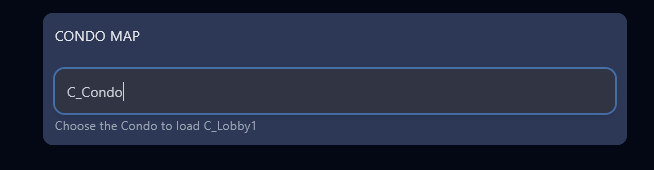
- On the Startup tab set Condo Map to the same map (
C_Condo). - Restart the server. The console should show
LOADING CONDO DATA: ../../../Tower/Condos/C_Condo/C_Condo.map.
Prefer to keep your own file name? Set CondoFile= in TowerServer.ini instead of renaming, see Using a different file name.
Server settings reference
Section titled “Server settings reference”Tower/Saved/Config/LinuxServer/TowerServer.ini is the server’s only config file. EVLBOX creates it for you and re-creates it if it ever goes missing.
[/Script/TowerNetworking.DedicatedServerOptions]ServerTitle=EVLBOX.COM New Condo ServerMaxPlayers=32SteamLoginToken=TowerLoginToken=
[DedicatedCondoOptions]CondoAutoSave=TrueCondoBackupsEnabled=True#CondoFile=
[Administration]AdminSteamID=76561198000000001| Setting | Where to change it | Notes |
|---|---|---|
ServerTitle, MaxPlayers, SteamLoginToken, TowerLoginToken |
Startup tab | Re-written from the Startup tab on every start, so edit them there, not in the file. Max players is 2-64. Tokens are empty on a new server. |
AdminSteamID |
Startup tab (added) or the file (added/removed) | One line per admin. |
CondoAutoSave |
the file | True saves the condo periodically after changes. Recommended. |
CondoBackupsEnabled |
the file | True keeps a backup copy each time the condo is saved. Turn off if disk space is tight; EVLBOX also takes scheduled server backups. |
CondoFile |
the file | Load a save with a different file name from the selected map’s folder. |
Bans live in Tower/Saved/Config/LinuxServer/TowerBans.ini (one SteamID=<id>,0 line per ban under [Bans]), and the server writes joins, leaves and chat to Tower/TowerServer_Chat.txt.
Your condo server is ready!
Section titled “Your condo server is ready!”You’re now hosting a persistent condo online. Invite friends, show off your space, and enjoy your custom condo experience. Something not working? Check Known Issues or head back to the Tower Unite hub.