
How to Change Minecraft Versions
How to Change Minecraft Version on Your Server
Section titled “How to Change Minecraft Version on Your Server”By default, your Minecraft server is set up with the latest version of Paper, a high-performance Minecraft server jar designed to improve game performance. Paper is an excellent choice for enhancing your server’s capabilities.
For the latest updates and downloads for Paper, visit the official site: PaperMC Downloads.
Server Version Information and How to Change Minecraft Versions
Section titled “Server Version Information and How to Change Minecraft Versions”To view your current server version, including the Minecraft version, build number, and Java version, follow these steps:
-
Log in to the Nitro Panel.
-
Click on the Startup tab to access your server settings.
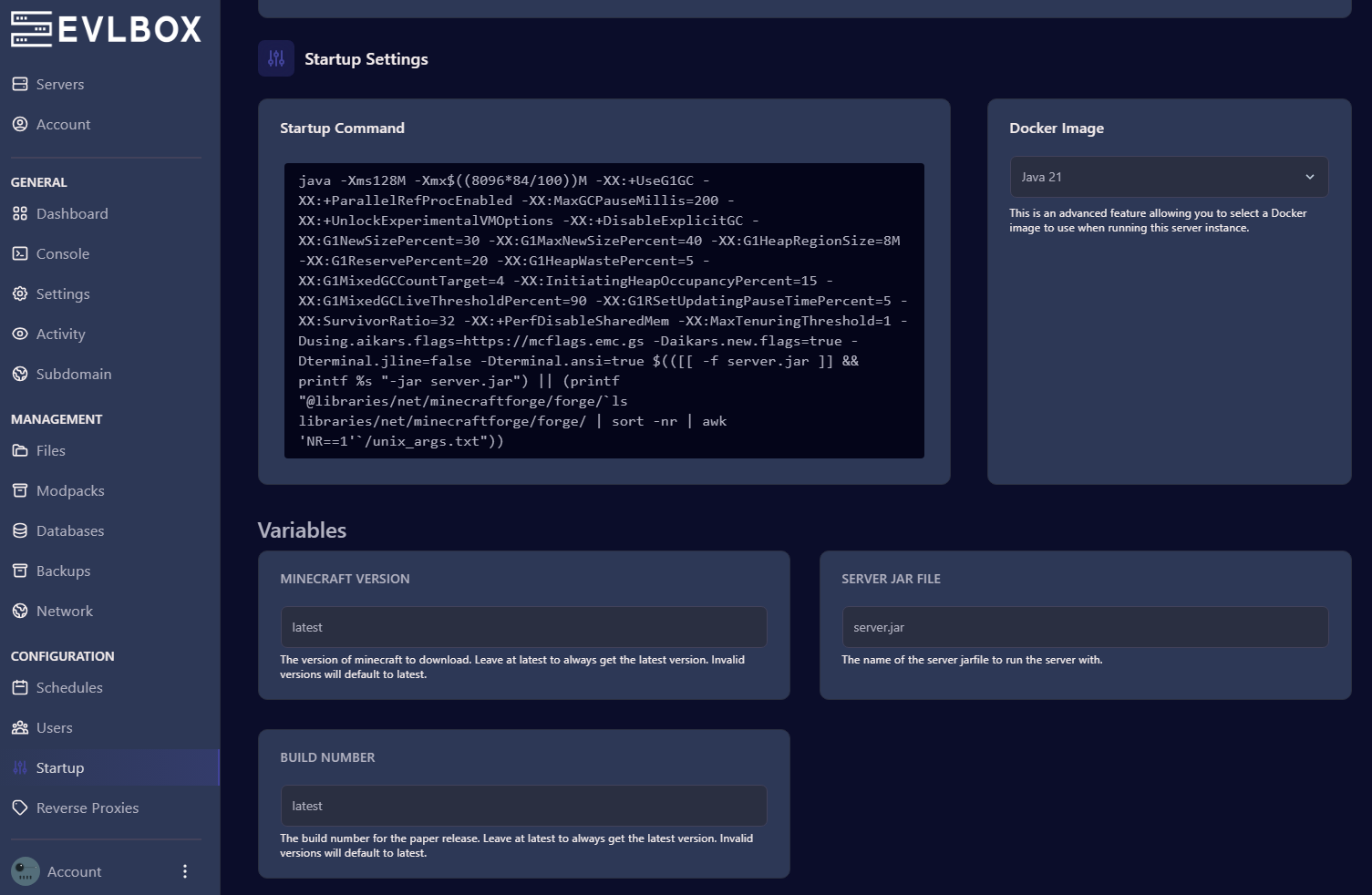
How to Change the Minecraft Version on Your Server
Section titled “How to Change the Minecraft Version on Your Server”Changing the version of Minecraft on your EVLBOX server is straightforward. Here’s a simple step-by-step guide:
-
Log in to the Nitro Panel and Stop Your Server.
- After logging in, navigate to the Startup tab.
-
Enter the Desired Minecraft Version:
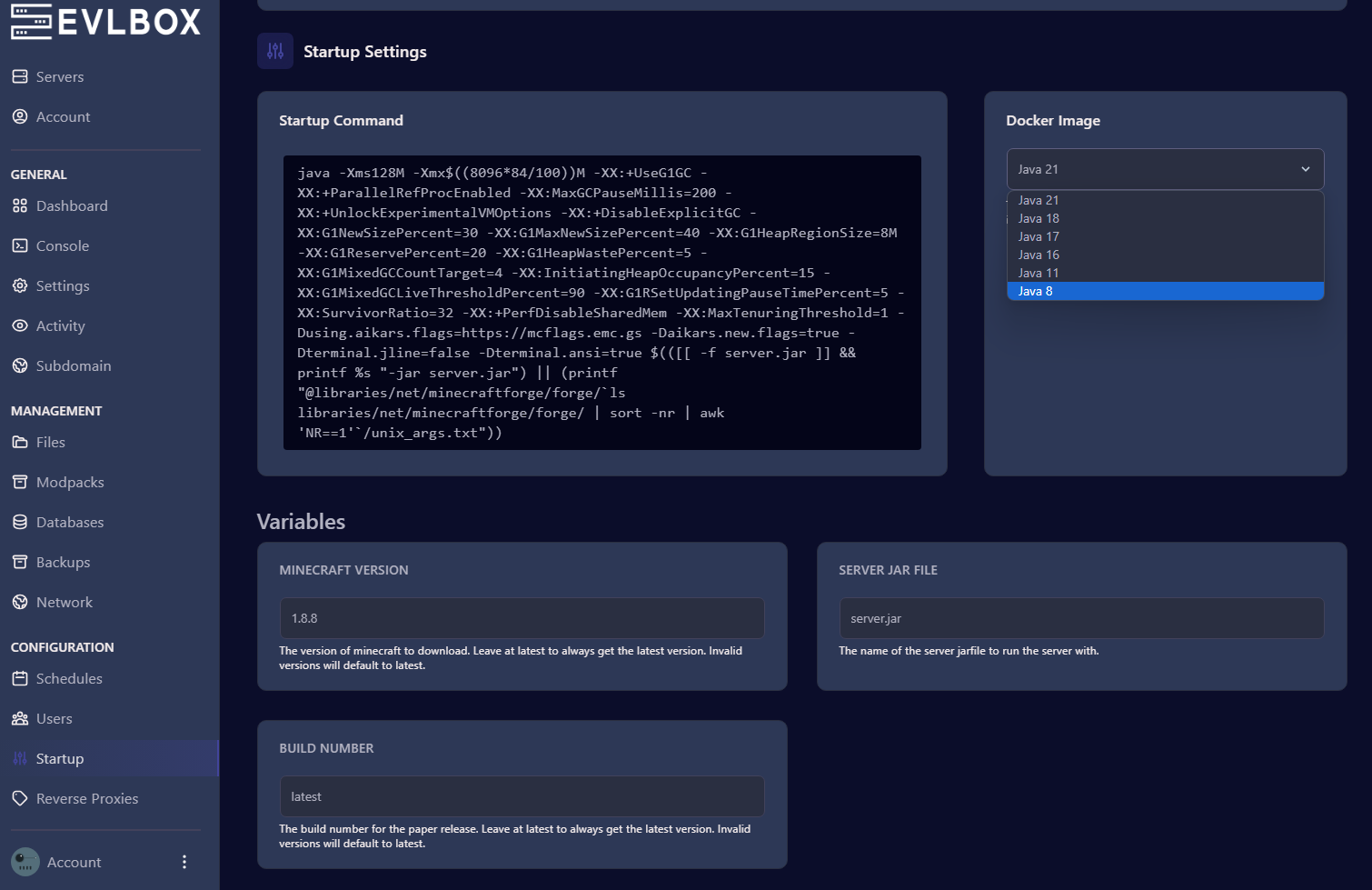
- In the Minecraft Version TextBox, type the version number of Minecraft that you want to install.
-
Find the Corresponding Java Version:
- Visit the PaperMC Documentation to find the corresponding Java version for the Minecraft version you want to use.
-
Select the Java Version:
- In the Docker Image dropdown menu, select the appropriate Java version that corresponds to the Minecraft version you’ve chosen.
-
Reinstall the Server:
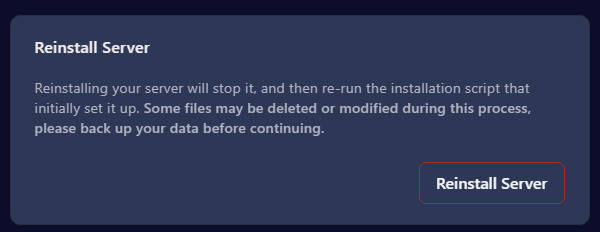
- After selecting the version, click on the Settings tab and choose Reinstall Server.
- Warning: This process may delete your saves, so be sure to back up your data before proceeding.
-
Restart the Server and Connect:
- Once the reinstallation is complete, ensure your server is online.
- Launch Minecraft and connect to your server using the newly installed version.
Why Change Your Minecraft Version?
Section titled “Why Change Your Minecraft Version?”Changing your Minecraft version allows you to access new features, optimizations, and bug fixes. Whether you’re upgrading to a new stable version or trying out an experimental version, it’s important to stay up-to-date with the latest releases.
Get Your Own Minecraft Server with EVLBOX
Section titled “Get Your Own Minecraft Server with EVLBOX”Ready to start your own Minecraft server? Visit EVLBOX Minecraft Servers and purchase your server today to enjoy high-performance hosting and full control over your server’s versions and settings!