
How to Optimize Your Minecraft Server for Maximum Performance
Running a Minecraft server can sometimes be a challenging task, especially when it comes to optimizing server performance. Whether you’re experiencing lag or want to ensure that your server runs smoothly for multiplayer gameplay, this guide will help you optimize your Minecraft server for maximum performance.
Follow the steps below to improve FPS, reduce lag, and make your Minecraft server more efficient.
1. Log in to the Nitro Panel
Section titled “1. Log in to the Nitro Panel”To get started, log in to the Nitro Panel for your EVLBOX Minecraft server. This is where you will manage your server’s settings and make performance adjustments.
- Visit the Nitro Control Panel.
- Enter your login details and access your Minecraft server.
2. Adjust Server Settings for Performance
Section titled “2. Adjust Server Settings for Performance”In the Nitro Panel, you can adjust key server settings that will directly affect performance.
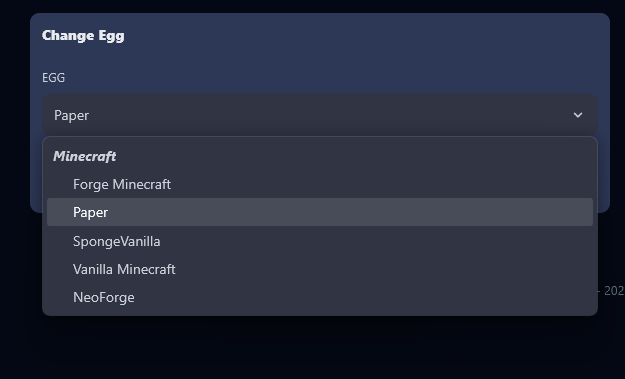
Server Mode (Paper):
Section titled “Server Mode (Paper):”To ensure your server is optimized, Paper should be running as the server mode. Here’s how you can set it:
-
Click on the Settings tab in the Nitro Panel.
-
Under the Server Egg section, set the Server Egg to Paper.
Memory Allocation:
Section titled “Memory Allocation:”- Ensure that you are allocating enough RAM to your server. A good rule of thumb is 3-5GB of RAM for a standard multiplayer server with 10-20 players.
World Settings:
Section titled “World Settings:”To optimize world generation settings and reduce server load, you need to manually configure the world border and other world settings in the server.properties file.
-
To edit these settings:
- Go to Files in the Nitro Panel.
- Locate the server.properties file.
- Manually adjust world border settings or any other settings you wish to change.

3. Install Performance Enhancing Plugins
Section titled “3. Install Performance Enhancing Plugins”To further improve performance, install plugins that help with optimization and server load management.
Recommended Plugins:
Section titled “Recommended Plugins:”- ClearLag: Automatically clears excess entities to reduce server load.
- WorldBorder: Limits the size of the Minecraft world to reduce unnecessary world generation.
- Timings: Helps monitor your server’s performance and identify lag-causing elements.
4. Optimize Java Settings
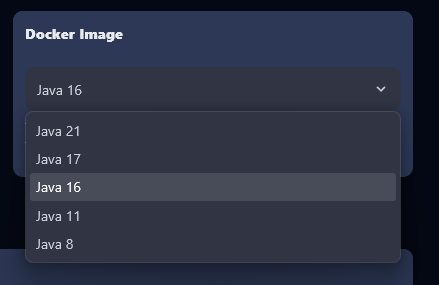
Section titled “4. Optimize Java Settings”Ensure that your server is running the optimal version of Java for best performance. Paper typically requires Java 8 or higher, but Java 16 or higher is recommended for the latest Minecraft versions.
Steps to Optimize Java Version:
Section titled “Steps to Optimize Java Version:”-
Navigate to the Startup section in the Nitro Panel.
-
Set the Java version by configuring the Docker Image section to the appropriate Java version.
5. Adjust Server Tick Rates
Section titled “5. Adjust Server Tick Rates”Tick rates determine how often Minecraft updates certain aspects of the game. Slower tick rates can result in lag, especially when there are too many entities or complex redstone circuits running. Adjusting your tick rates can help improve server performance.
Steps to Adjust:
Section titled “Steps to Adjust:”-
In the Paper configuration file, locate the
ticks-persettings. -
Reduce the entity tick rate to 20 (the default is 20 ticks per second).
-
Consider reducing the block update and entity update rates for better server efficiency.
Note: The Paper configuration file is located in the
configdirectory. The main configuration file ispaper-global.yml, and per-world settings can be found inpaper-world-defaults.yml. (docs.papermc.io)To edit these settings:
- Go to Files in the Nitro Panel.
- Navigate to the config folder.
- Locate and edit the
paper-global.ymlfile to adjust the desired settings.

6. Use a Server Performance Monitor
Section titled “6. Use a Server Performance Monitor”Use a performance monitoring tool to track your server’s usage of CPU, RAM, and disk space. This will help you identify bottlenecks and optimize accordingly.
- You can enable timings reports within Paper to track performance metrics.
- The Nitro Panel (based on Pterodactyl Panel) displays CPU and memory usage in real-time, helping you to monitor your server’s resource usage.
7. Manage Plugins and Mods
Section titled “7. Manage Plugins and Mods”If you’re using plugins or mods, be sure that they are performance-optimized and up to date. Some mods can introduce extra overhead or create compatibility issues that cause lag.
Plugin and Mod Tips:
Section titled “Plugin and Mod Tips:”- Regularly update your mods and plugins to ensure compatibility with the latest server updates.
- Remove unused mods and disable plugins that aren’t necessary for server operations.
8. Optimize Your Minecraft World
Section titled “8. Optimize Your Minecraft World”Sometimes, the issue isn’t the server settings but the Minecraft world itself. Over time, chunks can become corrupted or inefficiently generated.
Steps to Optimize World Performance:
Section titled “Steps to Optimize World Performance:”- Use the WorldBorder plugin to limit the size of your server’s world.
- Use Chunk Fixer tools to optimize world chunks and repair any corruption.
- Consider resetting unused chunks in large worlds to reduce the load on the server.
Conclusion: Achieving Maximum Minecraft Server Performance
Section titled “Conclusion: Achieving Maximum Minecraft Server Performance”By following these tips and optimizing your server settings, plugins, and Java configuration, you can dramatically improve your Minecraft server performance. Whether you’re hosting a small multiplayer server or a large community world, these optimizations will help reduce lag and create a smoother gaming experience for everyone.
Not sure how much RAM, CPU, or bandwidth your server needs? Try our Minecraft Server Resource Calculator for personalized recommendations based on your player count, mods, and world settings.
Get Your Own Minecraft Server with EVLBOX
Section titled “Get Your Own Minecraft Server with EVLBOX”Ready to launch your own Minecraft server? Visit EVLBOX to purchase a high-performance server, optimized for the best gaming experience. Start hosting today and enjoy seamless performance!