
How to Copy a Singlplayer World to your Server
How to Upload a Singleplayer world to your Server
Section titled “How to Upload a Singleplayer world to your Server”Upload your local File via SFTP
Section titled “Upload your local File via SFTP”We suggest using Cyberduck (it’s free). The built in file manager in nitro panel can’t upload multiple files at a time or folders. Install Cyberduck and then proceed with directions below.
- Login to the Nitropanel and click Manage Server for Project Zomboid. Stop your server then on the Dashboard you will see SFTP details. Scroll down and Click Launch SFTP
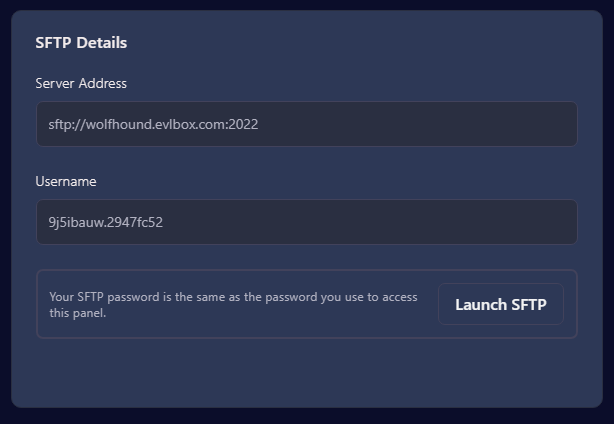
- The browswer will prompt you to open cyberduck. Click Open and then click allow on the following fingerprint message. Then, enter in your Nitro Panel Password and Login.
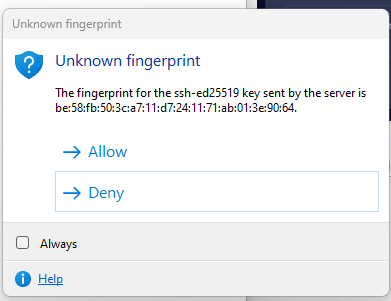
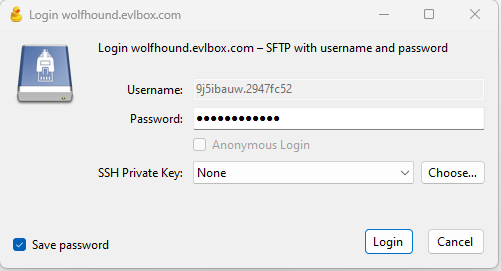
-
Navigate to the .cache folder. If it is not viewalbe, in the menu, click View, Show Hidden Files.
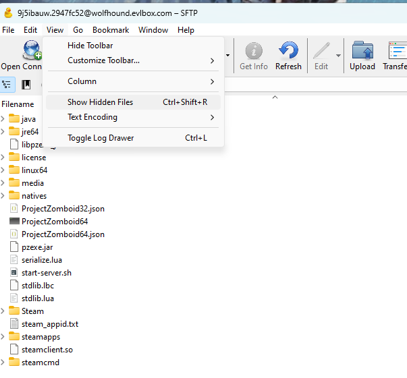
-
Then Navigate to .cache/Saves/Multiplayer
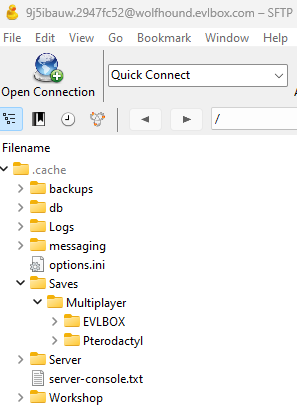
- In a new file explorer window navigate to Users/Username/Zomboid/Saves/Mode You will need to select the folder for the mode of the game you would like to upload like Builder, Survival, Etc.
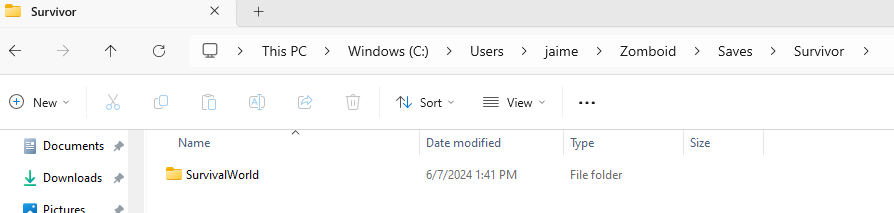
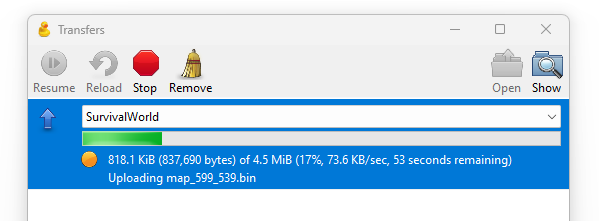
- Drag and Drop or Copy and Paste this local folder into the Saves/Multiplayer Folder in the Cyberduck Window. It will prompt you for permisson to copy the file. Click allow and wait for the file to upload.
Update your dedicated Server
Section titled “Update your dedicated Server”-
In the NitroPanel Under Configuration, Click on the Startup Tab.
-
In here you will want to update the name of your World.
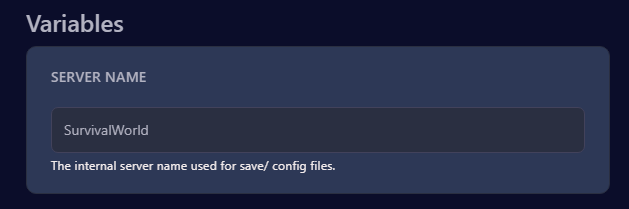
- Start your Server and Check the Console Tab to confirm that the world installed sucessfully.