Reset Root Password
Changing the Root Password
Section titled “Changing the Root Password”Login To The Panel
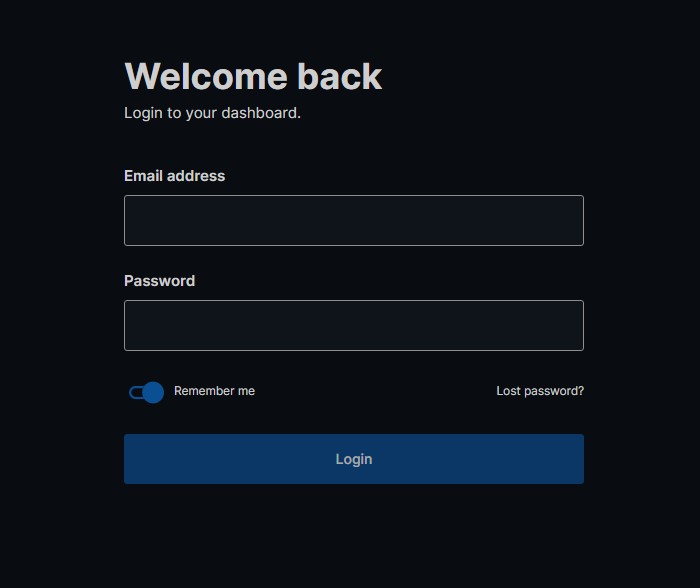
Section titled “Login To The Panel”Below is the client login URL for the VPS Panel https://vf.evlbox.com/login
Go to the VPS Management Page for your machine and Change the Root Password
Section titled “Go to the VPS Management Page for your machine and Change the Root Password”To Change the Root Password of your VPS.
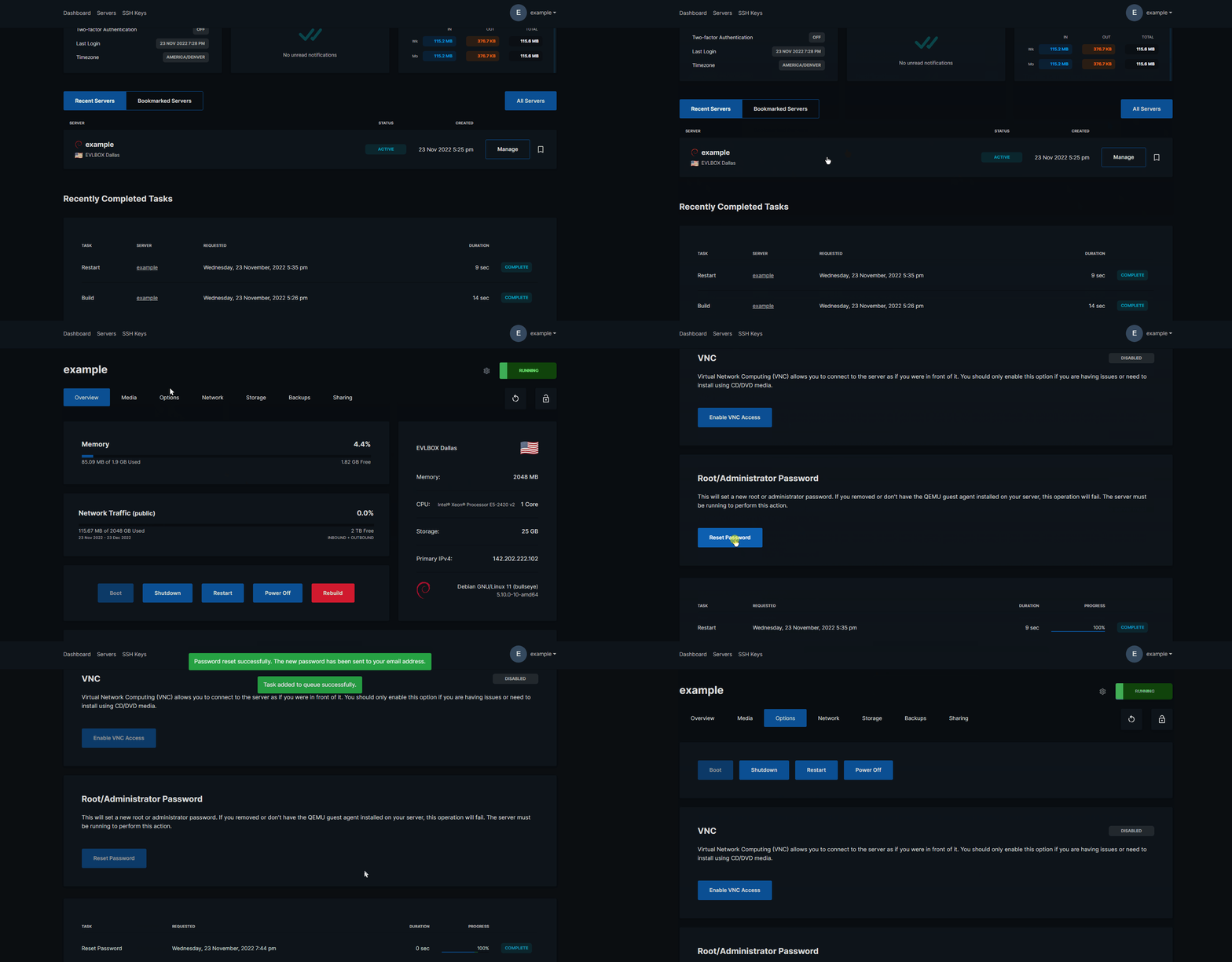
- Go to VPS Management Page
- Find your VPS and select the “Manage” Button
- click on the “Options” tab on the top navigation bar
- Scroll Toward the Bottom, Find the Area Labeled “Root/Administrator Password.
- Press the “Reset Password” Button
- Select the account you wish to reset the password for using the “USER” Drop down.
- For a linux VPS choose “root”
- For a Windows VPS choose “Administrator”
- At the top of your screen you should see a message Stating “Password Reset Successfully. The new password has been setn to your email address”.
- Check your email address for your new root password