
How to Setup RCON Commands
The console window in the Nitro Control Panel will now issue RCON commands to your Palworld Server. Follow the steps below to use RCON commands.
How to Reinstall your server
Section titled “How to Reinstall your server”To take advantage of these new features, you will need to reinstall your server.
- Login to the Nitro Panel and go to the settings tab.
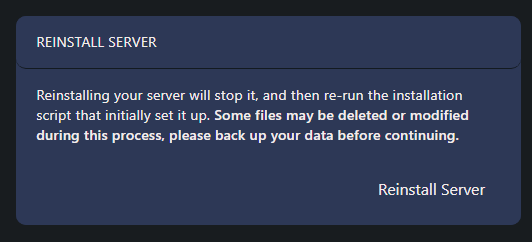
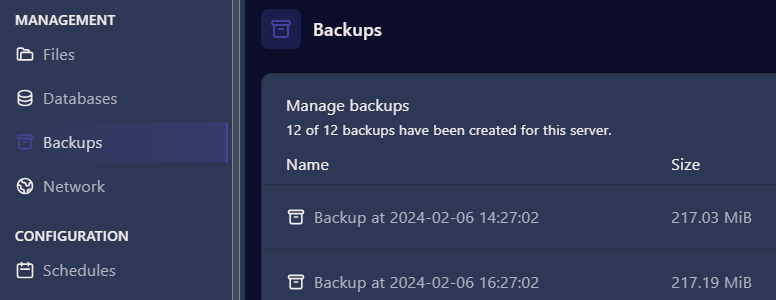
- There is a warning message about backing up data. Automatic server backups should be running for your server but you can check when the last backup ran under the backups tab.
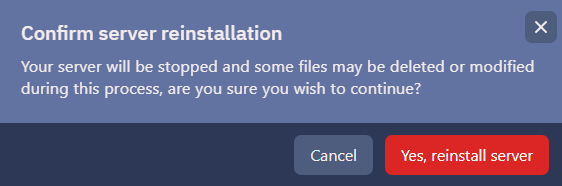
- Click Reinstall Server and Yes, Reinstall on the pop up message
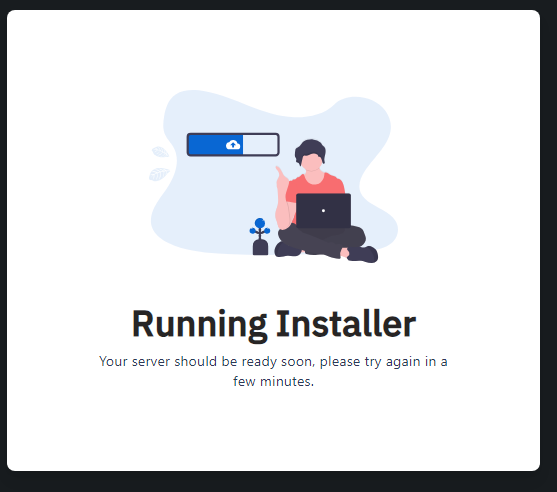
- You will see message that the installer is running, when complete it will return to the settings screen.
- Go to the console tab and check to see if you server is running. If it is offline, click start to bring it online.
RCON Commands
Section titled “RCON Commands”- Login to the Nitro Panel and Click on Console
- With the update, you will now see a line to enter commands.
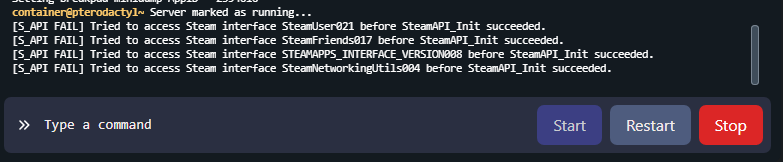
- You can now type in any of the commands listed below and they will list information in the console logs or display messages in game.

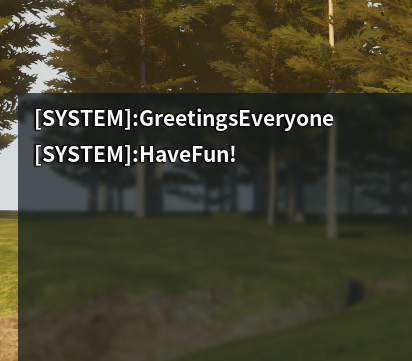
Shutdown [Seconds] [MessageText] – Shut down the server with the indicated time DoExit – Shut down the server immediately after using the command Broadcast [MessageText] – Broadcast a message to all players (Does not allow spaces in text) KickPlayer [SteamID] – Kick a player BanPlayer [SteamID] – Ban a player ShowPlayers – List all players on the server Info – Shows server name, current game version, and more. Save – Save all data from your world