
How to Change Server Settings
Server Settings
Section titled “Server Settings”Palworld allows players to adjust several World Settings. This can be done in game for a single player game, but these can also be set for multiplayer games from the PalWorldSettings.ini file.
✨NEW: There are now two ways to update the server settings, please see the links below for using the configuration Builder or How to update settings manually
How to Use the Configuration Builder
How to Update ini file Manually
Memory Leak Issues and Server Settings
How to Use the Configuration Builder
Section titled “How to Use the Configuration Builder”We’ve added a configuration builder which will allow you to configure the settings from the PalWorldSettings.ini file without needing to edit the file directly. These settings can be modified in the “Startup” section of the Nitro control panel.
- Adding the Configuration Builder to the Server requires a reinstall. Login to the Nitro Panel and go to the settings tab. Click Reinstall and then click yes on the confirmation window. After a few moments, the message the installer is running will close.
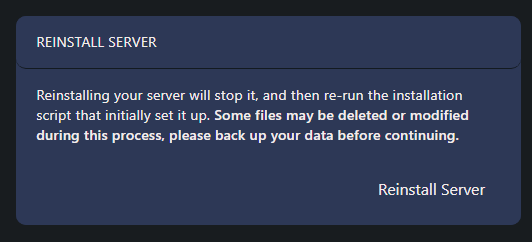
- Your existing configuration file in the Pal/Saved/Config/LinuxServer/PalWorldSettings.ini will be renamed to PalWorldSettings_2024xxxxxxxxxxx.ini The PalWorldSettings.ini file will be set back to game defaults. If you are not sure what settings you had changed before, they will be viewable in the renamed 2024 file.
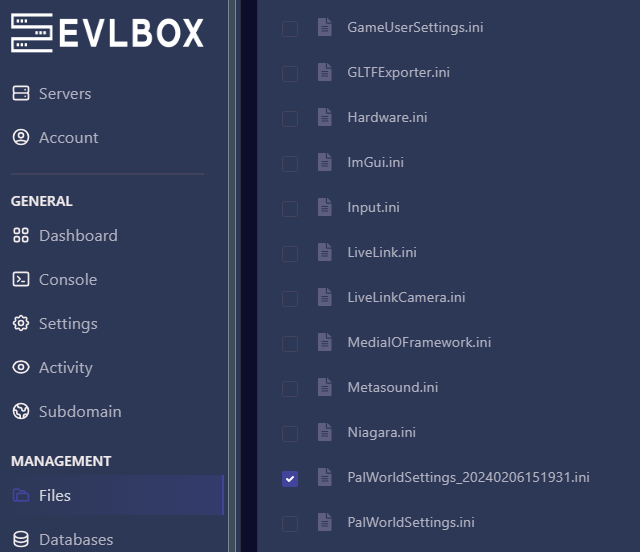
-
Go to the console and stop your server.
-
Then click on the startup tab. You can now edit any settings you like, and on server start, they will be added to your PalWorldSettings.ini file for you automatically.
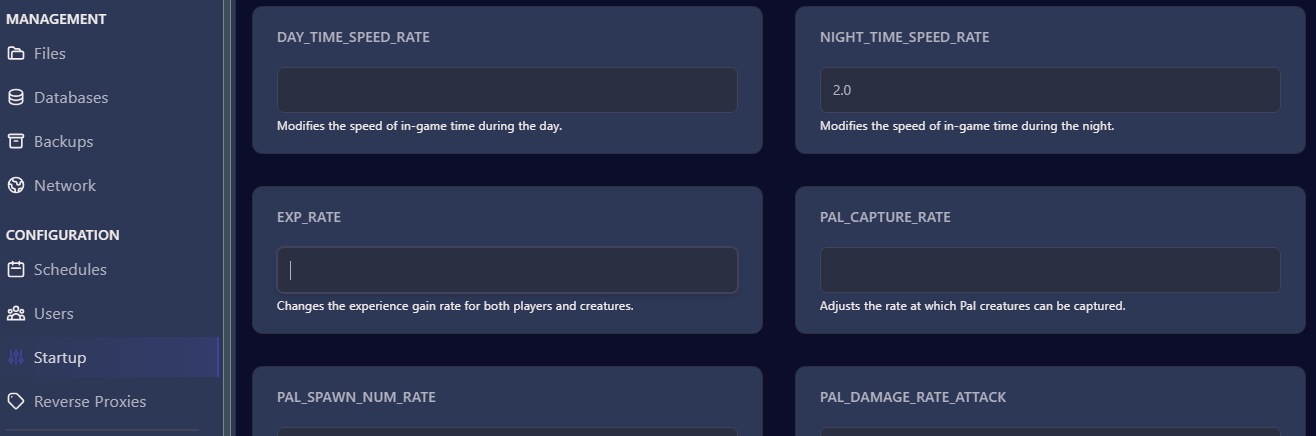
-
Reinstalling the server may have reset any passwords to blank. If you would like to use passwords, make sure to check and update the password variables as needed in the startup tab.
-
To apply the changes, go to the console tab and Start your server.
How to update the settings from the ini file Manually
Section titled “How to update the settings from the ini file Manually”- Log in to the nitro panel and go to the console menu and stop your server.
- Click on the file tab and scroll down to the file “DefaultPalWorldSettings.ini” and click on the name to open it.
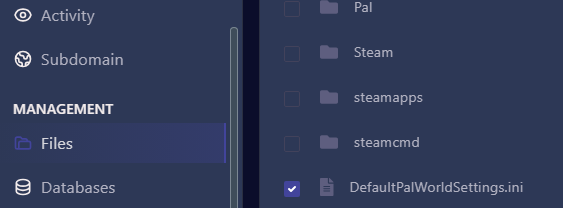
- Copy the contents starting at line 4.
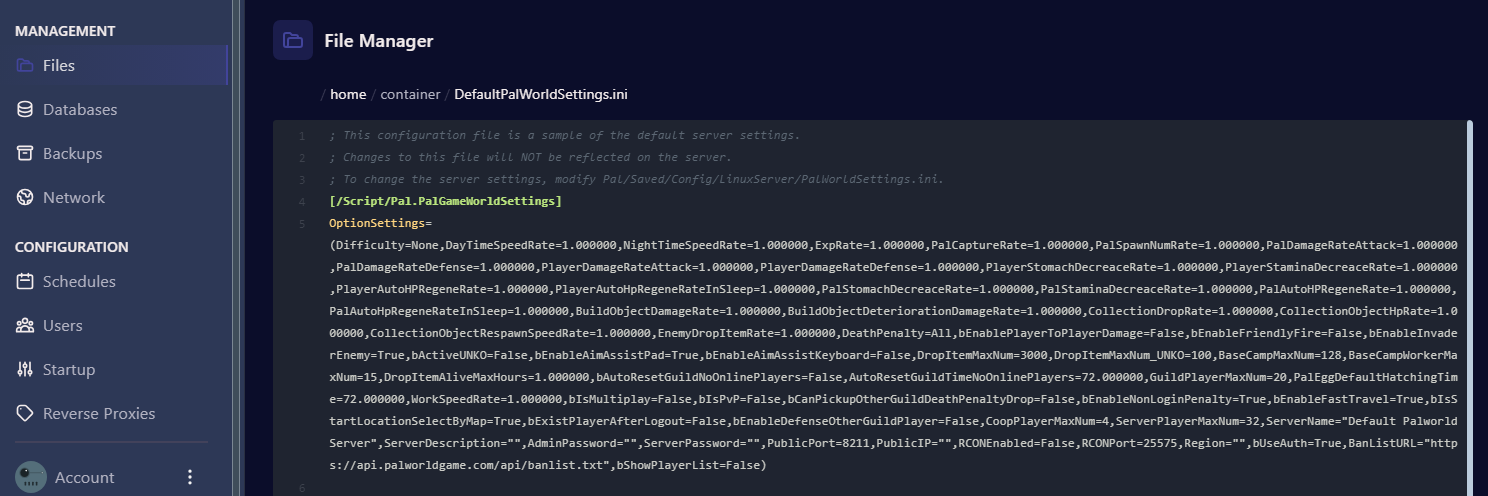
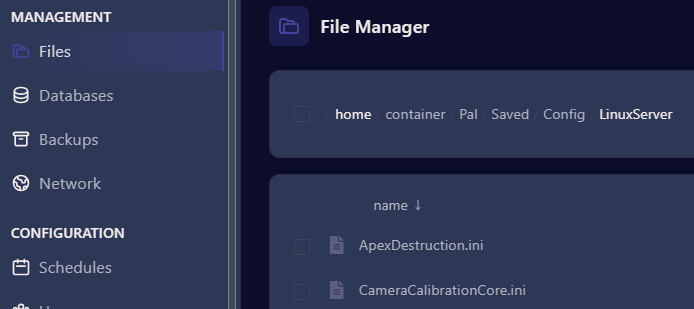
- Click on the file tab again and navigate to Pal/Saved/Config/LinuxServer and you will scroll down to find a file called PalWorldSettings.ini

- Open the PalWorldSettings.ini file and paste the copied text here.
- Adjust the values you want in the file. To see what each setting does, please see the official guide
- Save the content before leaving this screen.
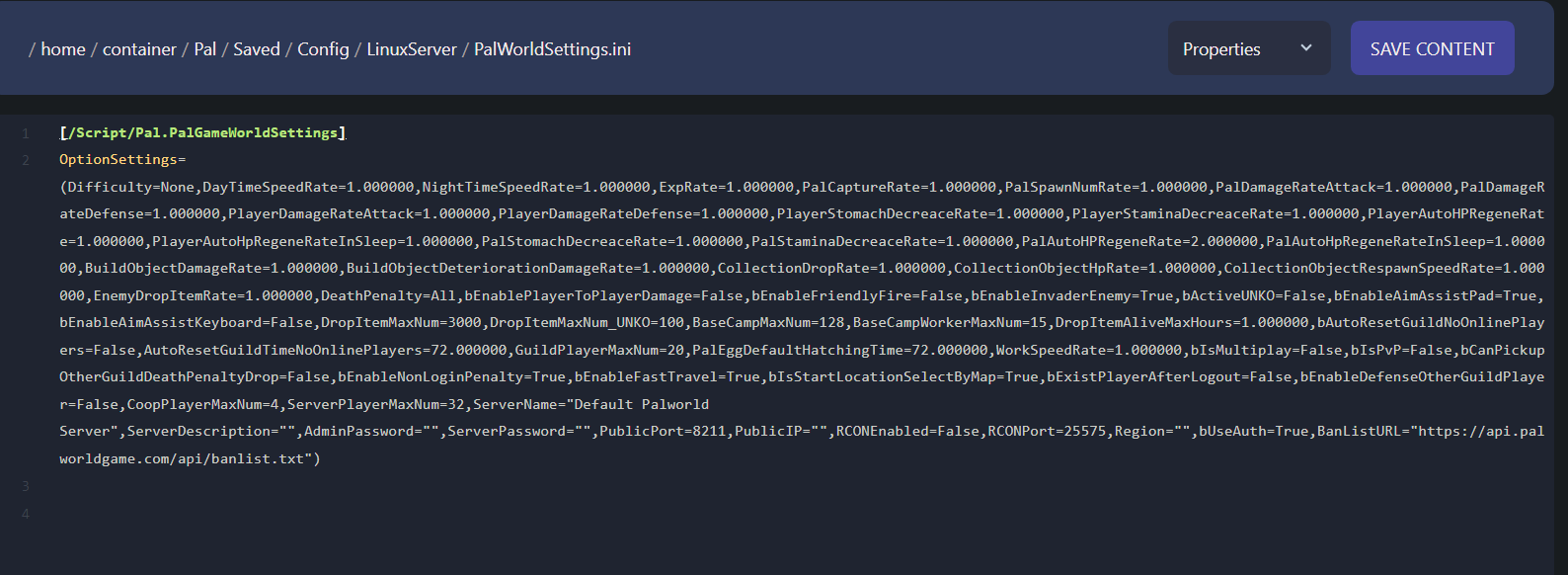
- Navigate back to the console and restart your server.
Memory Leak Issues and Server Settings
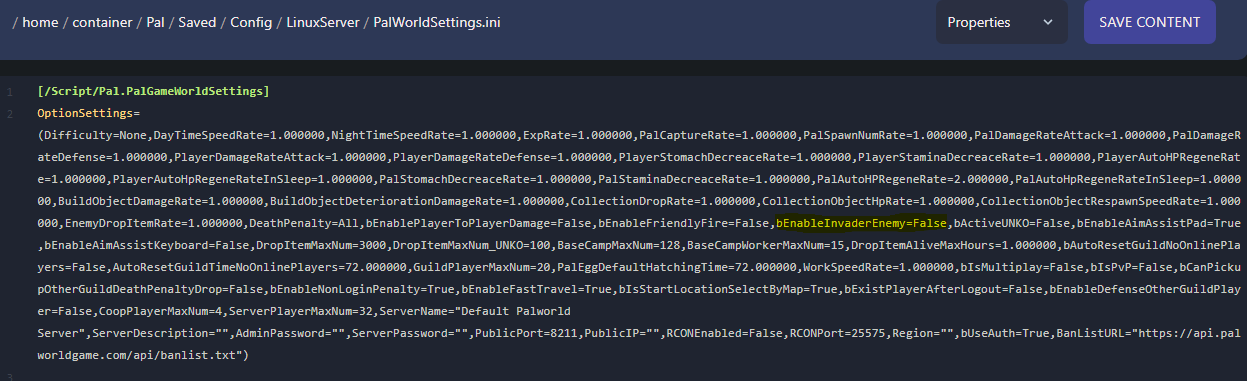
Section titled “Memory Leak Issues and Server Settings”One thing that seems to be having a postive effect on the memory leak issues is disabling the enemy invading option. This will turn off enemy raids on your base in game.
- To turn raids off in game set “bEnableInvaderEnemy = False” in the ini file.
Existing Game Data and Settings Changes
Section titled “Existing Game Data and Settings Changes”If you would like to start a new game on your server after you have applied the settings, you will need to delete the save game data.
See Article - How to Delete and Archive Save Data for more information
Potential Issues with Server Settings
Section titled “Potential Issues with Server Settings”Not working? Settings not taking? If you have noticed that the server settings are not being applied after you have updated the PalWorldSettings.ini and restarted your server try the following:
-Clear out the Admin Password and Server Password from the Startup tab in the Nitro Panel and only use the INI file to set those values.