
Transfer singleplayer save to Foundry Server
How to Transfer a Singleplayer Save to Your Foundry Server
Section titled “How to Transfer a Singleplayer Save to Your Foundry Server”Want to continue your singleplayer factory world on your Foundry dedicated server? Follow this simple guide to migrate your save and pick up exactly where you left off—now with friends!
Step-by-Step Instructions
Section titled “Step-by-Step Instructions”1. Locate Your Singleplayer Save
Section titled “1. Locate Your Singleplayer Save”Your local Foundry saves are stored here:
C:\Users\your-username\AppData\LocalLow\Channel 3 Entertainment\Foundry\save
Each folder here contains multiple saves, including autosaves.
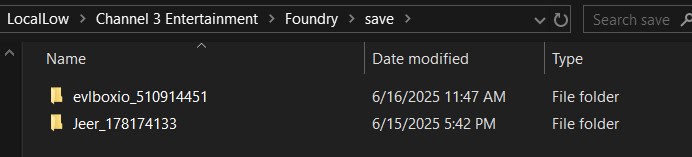
For this example we’ll use Jeer_178174133. You can rename this if you like, but just remember the name for step 5!
2. Prepare Your Save File
Section titled “2. Prepare Your Save File”- Choose the save folder you want.
- Right-click on it and select Send to > Compressed (zipped) folder.
3. Upload Your Save to Nitro Panel
Section titled “3. Upload Your Save to Nitro Panel”- Go to the Nitro Control Panel.
- Click your Foundry server.
- Navigate to:
Files > serverfiles > save
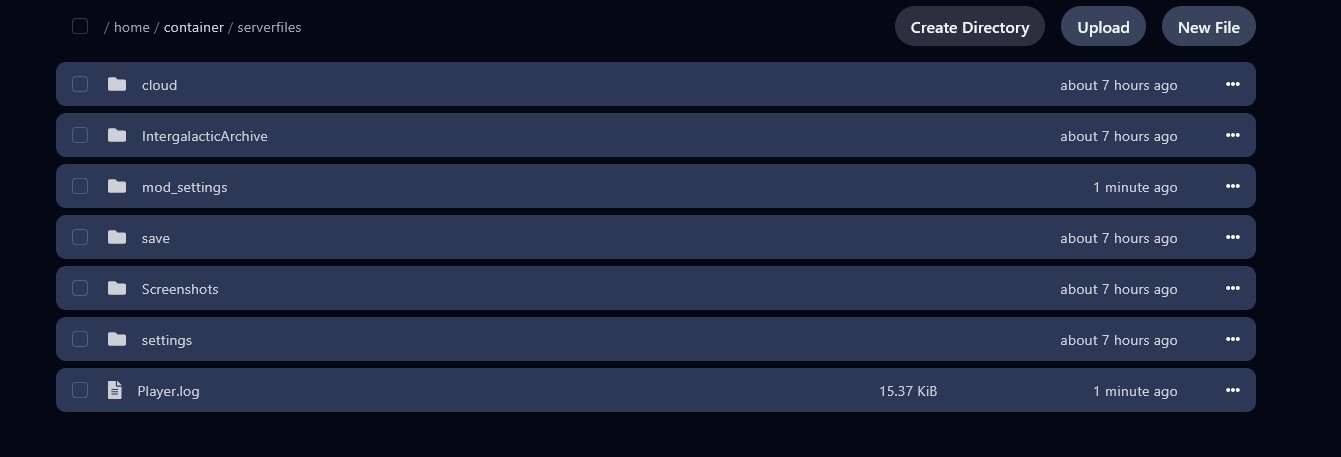
4. Upload and Extract Your Save
Section titled “4. Upload and Extract Your Save”- Drag and drop your ZIP file into the folder.
- Select the ZIP, checkmark it, then choose Unarchive.
⚠️ Note: Save files are large and may take time to upload. Check progress via the cloud icon near “Create Directory”. See below screenshot for the upload “spinner”

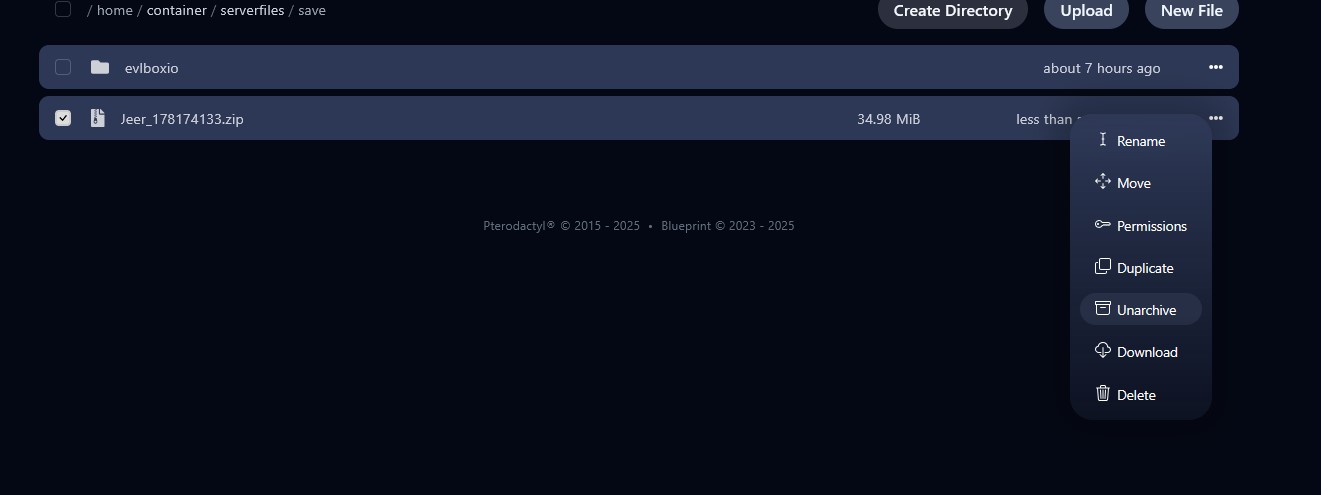
5. Configure Your Server to Use the Save
Section titled “5. Configure Your Server to Use the Save”Ensure the server is stopped before proceeding.
- Go to the Startup tab.
- Find the Server World Name field.
- Enter the name of the folder you just unzipped.
6. Start the Server and Join the Game
Section titled “6. Start the Server and Join the Game”- Click Start.
- Launch Foundry and join your server.
Need help? See our article on How to Connect to Your Foundry Server
Get a Foundry Server
Section titled “Get a Foundry Server”Haven’t ordered your server yet? Get your own high-performance server now on EVLBOX Foundry Hosting.