🔥 ENSHROUDED 1.0 IS HERE: servers rebuilt for 1.0, every setting in the panel, and a year of any game on the new Flex plan.
How to Set Up a Hytale Dedicated Server on Windows
How to Set Up a Hytale Dedicated Server on Windows
Short answer: install Java 25, download the server files from Hytale's official downloader, authenticate with your Hytale account, and run start.bat. The whole process takes about 15 minutes depending on your internet speed. Here's exactly how to do it.
What You'll Need Before You Start
- Windows 11 (64-bit)
- A Hytale account with a valid game key — if you don't have one yet, you'll need to purchase a key from Hytale before your server can authenticate
- Java 25 (we'll install this in step 1)
- At least 8 GB of RAM to dedicate to the server (more on this below)
Step 1: Install Java 25
Hytale's server requires Java 25. We recommend Adoptium's Eclipse Temurin JDK — it's free, open source, and just works.
- Download the installer from adoptium.net
- Run the installer and stick with the default options. The defaults will set your PATH variable and associate
.jarfiles automatically.
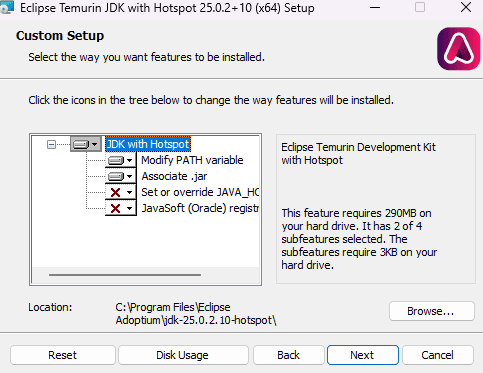
That's it for Java. No need to change anything in the installer.
Step 2: Sign In to Your Hytale Account
Open your browser and sign in at https://accounts.hytale.com. If you're already signed in, you can skip this step.
Heads up: You need a valid Hytale key linked to your account. If you don't have one, you'll need to purchase one before your server can authenticate players.
Step 3: Download the Hytale Server Downloader
Grab the official downloader from Hytale — it includes both Windows and Linux versions:
https://downloader.hytale.com/hytale-downloader.zip
Step 4: Unzip the Downloader
Extract hytale-downloader.zip to a folder of your choice. Somewhere simple like C:\HytaleServer works well.
Step 5: Run the Downloader
Double-click hytale-downloader-windows-amd64.exe from the extracted files. A terminal window will appear showing a URL and an authorization code.

Important: The link shown in the terminal isn't clickable — you'll need to copy the top URL (the one with ?user_code= at the end) and paste it into your browser.
Step 6: Authorize the Downloader
After pasting the URL into your browser, you'll see the Hytale authorization page. Click Approve to grant the downloader access to your account.
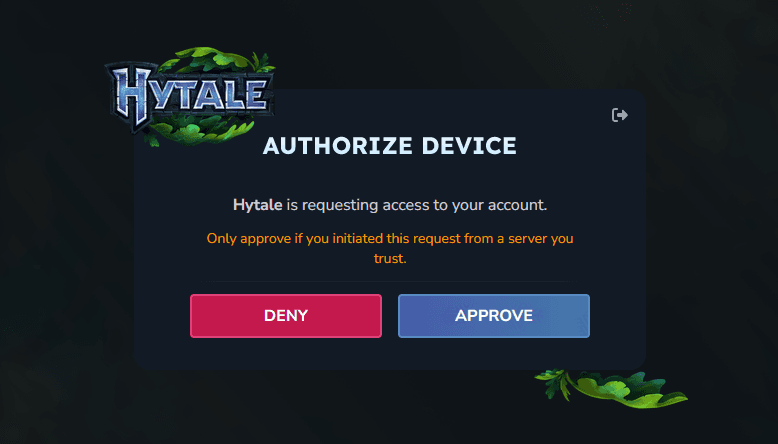
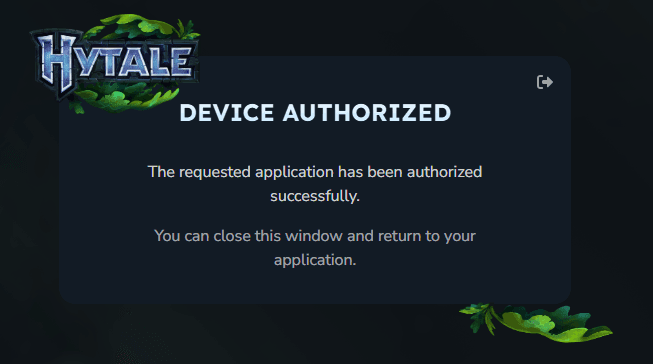
Once approved, you'll see a confirmation that the device was authorized successfully.
Step 7: Wait for the Download
Back in the terminal, the downloader will begin pulling down the Hytale server files. You'll see a progress bar — the download is roughly 1.4 GB compressed.

When it finishes, the terminal window will close automatically. In the same folder as the downloader, you'll find a new .zip file (around 2 GB). Unzip that file.
Step 8: Open a Terminal in the Server Folder
After extracting, open the Server folder. Right-click on an empty space inside the folder and select Open in Terminal.
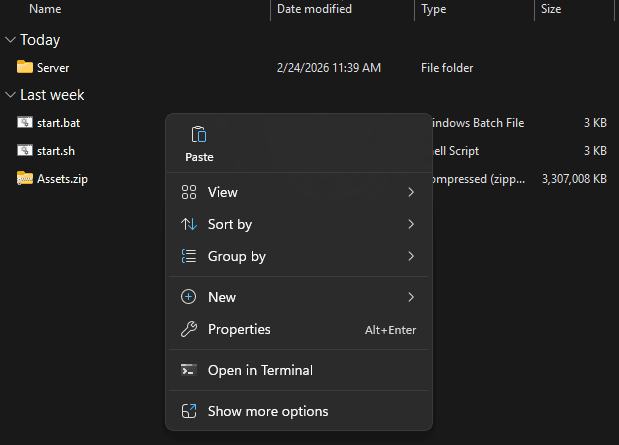
Step 9: Start the Server
In the terminal, type:
./start.bat
This batch file will update the server, apply any patches, and start the server with default settings. Give it a minute to finish booting.
Step 10: Authenticate Your Server
This step is required. After you see the green "Hytale Server Booted!" message in the terminal, you need to authenticate your server so players can connect.
Type the following command into the terminal:
/auth login device
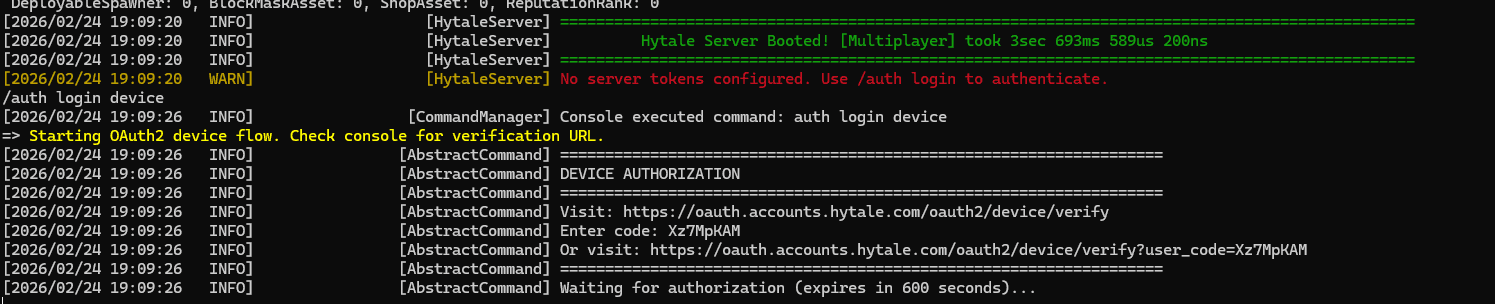
This starts an OAuth flow similar to Step 6. You'll see a URL in the terminal — copy the "Or visit:" link (the one with ?user_code= at the end), paste it into your browser, and click Approve just like before. Once authorized, your server is ready for players to join.
Step 11: Open the Firewall and Forward the Port
Your server is running, but players outside your network won't be able to connect until you allow traffic through Windows Firewall and your router.
Windows Firewall: Open PowerShell as Administrator and run:
New-NetFirewallRule -DisplayName "Hytale Server" -Direction Inbound -Protocol UDP -LocalPort 5520 -Action Allow
Router port forwarding: You'll also need to forward UDP port 5520 to your PC's local IP address in your router settings. Most modern routers with UPnP enabled may handle this automatically, but if players can't connect, you'll need to set up a manual port forward. Every router is different — check your router's admin page (usually 192.168.1.1 or 192.168.0.1) and look for a "Port Forwarding" section.
How Much RAM Does a Hytale Server Need?
Hytale's official docs say 4 GB minimum. Technically that's true — the server will start. But from our experience hosting Hytale servers, 4 GB leads to crashes after a few hours of play, especially with multiple players online. That means potential world corruption and lost progress, which is not a fun support ticket to deal with.
We recommend a minimum of 8 GB of RAM for any Hytale server you plan to actually play on. This gives the server enough headroom for world generation, entity tracking, and garbage collection without running into out-of-memory crashes.
Here's a rough guide based on what we've seen:
| Players | RAM | CPU Cores | Notes |
|---|---|---|---|
| 1-5 | 8 GB | 2-4 | Comfortable for a small group |
| 5-15 | 12 GB | 4 | Handles moderate activity well |
| 15-30 | 16 GB | 4-6 | Recommended for community servers |
| 30+ | 20+ GB | 6+ | You'll want dedicated hardware at this point |
Customizing Server Startup (Optional)
If you don't want the defaults from start.bat, you can launch the server manually with custom settings. For example, to set a specific bind port and control memory allocation:
java -Xms8G -Xmx8G -jar HytaleServer.jar --assets Assets.zip --bind 5550
Here's what those flags mean:
-Xms8G— sets the minimum memory the server reserves at startup-Xmx8G— sets the maximum memory the server can use--bind 5550— sets the port the server listens on (the default is 5520 — only change this if you need to run on a different port)
Setting -Xms and -Xmx to the same value prevents the JVM from constantly resizing its heap, which reduces lag spikes. Match these values to however much RAM you can spare from the table above.
For the full list of server options and configuration, check out the official Hytale Server Manual.
What If You Don't Want to Self-Host?
Self-hosting is great for testing or playing with a couple of friends, but it does mean your server goes offline when your PC is off. Your upload bandwidth also becomes a bottleneck for player connections, and you're responsible for keeping Java updated and the server patched.
If you'd rather just have a server that's always online and managed for you, we host Hytale servers at EVLBOX on AMD Ryzen hardware with NVMe storage. Setup takes about two minutes through our Nitro Panel, and we handle the updates. Check out our Hytale documentation if you want to see what the managed experience looks like.
Either way — whether you self-host or go managed — the steps above will get you up and running today.
- Authors