
How to Install Mods
How to Use Mods on Your Palworld Server
Section titled “How to Use Mods on Your Palworld Server”Palworld mods are built for the Windows dedicated server, because the mod framework the community uses — UE4SS — only exists for Windows. The standard Linux server can’t load them at all.
To run mods, switch your server to the Palworld Proton egg. That runs the Windows build of the dedicated server on our Linux hardware through a compatibility layer called Proton. Same game, same saves, same performance profile — it just gains the ability to load Windows mods.
| Egg | Use it for |
|---|---|
| Palworld Linux | The vanilla experience. Simpler, and what we recommend if you don’t want mods |
| Palworld Proton | Mods. Required for anything using UE4SS |
1. Change the egg
Section titled “1. Change the egg”- Log in to the Nitro Panel and stop your server.
- Open Settings in the sidebar.
- Under Change Egg, pick Palworld Proton from the dropdown.
- Click Apply.
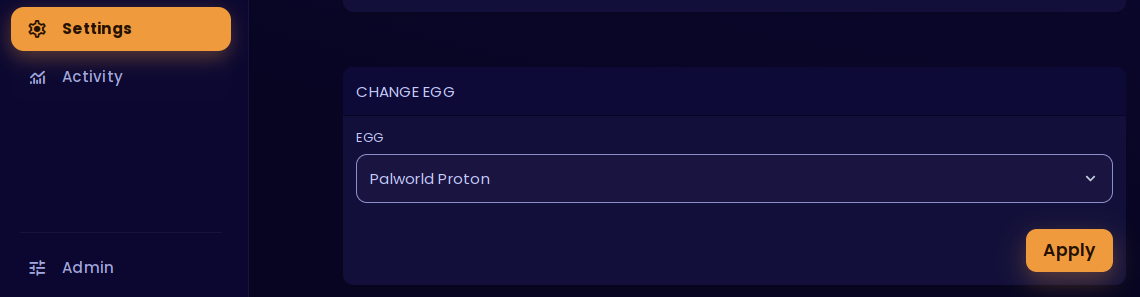
Swapping back is the same process — choose Palworld Linux and apply.
- Check the Startup tab. Mod Loader (UE4SS) is on by default — that’s what installs the mod framework for you.
- Start the server.
2. Upload your mods
Section titled “2. Upload your mods”Stop the server, open the Files tab, and put the mod in the folder that matches its type:
| Mod type | Where it goes |
|---|---|
| Lua mods | Pal/Binaries/Win64/Mods/ |
Blueprint / .pak mods |
Pal/Content/Paks/LogicMods/ |
Restart the server after adding a mod.
3. Confirm the mod loaded
Section titled “3. Confirm the mod loaded”Mod output appears in the panel Console prefixed with [Lua]. That’s also where a mod’s own errors show up, so watch it as the server starts.
Palworld’s dedicated server is unusually quiet on its own, so we add our own status lines. Once you see this, the server is genuinely joinable:
[EVLBOX] Server is up and accepting connections.[EVLBOX] Watching for player joins and leaves. No players online.Snapshotting your server with GameSwap
Section titled “Snapshotting your server with GameSwap”GameSwap is a separate tool from Change Egg — it doesn’t change your egg, and you don’t need it to run mods. What it does is take a complete snapshot of your current Palworld server: the entire filesystem, including saves, configs, mods and any file you’ve edited, frozen into a slot you can restore later exactly as you left it.
That’s broader than a backup, which only captures your save data. It’s worth doing if you want a known-good copy of your server preserved before you start experimenting with mods.
See GameSwap for the full walkthrough.
Before you install a mod
Section titled “Before you install a mod”- Mods are third-party software and aren’t covered by support. If a mod breaks your server, the fix is to remove it.
- Back up your save first.
- Check the mod is still maintained. Palworld updates regularly break mods that hook into the game. A mod that hasn’t been updated in a year will usually load, print a cheerful startup message, and then quietly do nothing.
- To rule a mod out as the cause of a problem, set Mod Loader (UE4SS) to
0on the Startup tab and reinstall. That gives you a clean, unmodded server.
Startup settings on the Proton egg
Section titled “Startup settings on the Proton egg”These three settings only exist on the Proton egg.
| Setting | Default | What it does |
|---|---|---|
| Mod Loader (UE4SS) | On | Installs the mod framework. Turn off and reinstall for a clean unmodded server |
| Console Log Output | On | Runs the game’s console build so its log reaches your panel console. Leave on unless the server misbehaves |
| Show Player Joins/Leaves | On | Reports joins and leaves in the console every 30 seconds |
Everything else is configured the same way as on the Linux egg — see Change your Server Settings. Don’t edit Pal/Saved/Config/WindowsServer/PalWorldSettings.ini by hand; it’s rewritten from your Startup tab settings on every start.
Chat logging
Section titled “Chat logging”Palworld gives servers no way to report in-game chat — neither RCON nor its web API exposes it. That’s a limitation of the game and applies to every Palworld host.
The only way to capture chat is a mod that reads it from inside the game, which means it only works on the Proton egg. If you install one, its chat output shows up in your panel console automatically with no configuration on our side, and some can forward chat to Discord. Chat mods hook deep into the game and are the first thing to break after a Palworld update, so treat chat logging as a nice-to-have.
Removing a mod
Section titled “Removing a mod”- Stop the server.
- Delete the mod’s files from
Pal/Binaries/Win64/Mods/orPal/Content/Paks/LogicMods/. - Start the server and watch the console.
Troubleshooting
Section titled “Troubleshooting”| Issue | Cause and fix |
|---|---|
| Mod loads but does nothing | Almost always an outdated mod. Check the console for [Lua] errors after startup |
| Server won’t start after adding a mod | Remove the mod’s files and restart. If you’re not sure which mod, set Mod Loader (UE4SS) to 0 and reinstall |
| Server won’t start after a game update | Set Console Log Output to 0 and restart |
.pak mod never loads |
BPModLoaderMod is missing from Pal/Binaries/Win64/Mods/. Reinstall with Mod Loader (UE4SS) on |
| Console looks empty | Normal for Palworld. As long as you see [EVLBOX] Server is up, the server is running. Try ShowPlayers |
| Settings not applying | Change them on the Startup tab, not in the .ini file, then restart |
| Lost world after switching eggs | Restore a backup from Pal/Saved/SaveGames/, or a GameSwap freeze if you took one |
Questions? Reach out on the support Discord or create a ticket.