
First Time Setup: Connect to your Windrose Server
Windrose lets you connect two ways: by invite code (a short string like f1014dc1) or by direct address (e.g. locate.evlbox.com:6297). EVLBOX gives every server a stable hostname, so the direct-address option is the easiest for a regular crew.
This guide covers setting your invite code, an optional password, and joining from the game.
1. Set your invite code (recommended)
Section titled “1. Set your invite code (recommended)”Windrose’s own console output is noisy and the auto-generated invite code is hard to spot. We strongly recommend setting your own code in the panel before first launch.
- Log in to the Nitro Panel and open your Windrose server.
- Stop the server if it’s running.
- Open the Startup tab.
- In the Invite code field, enter a code you’ll remember. Rules:
- 6 or more characters
- Letters
a-zA-Zand digits0-9only - Case-sensitive
- Click out of the field to save.
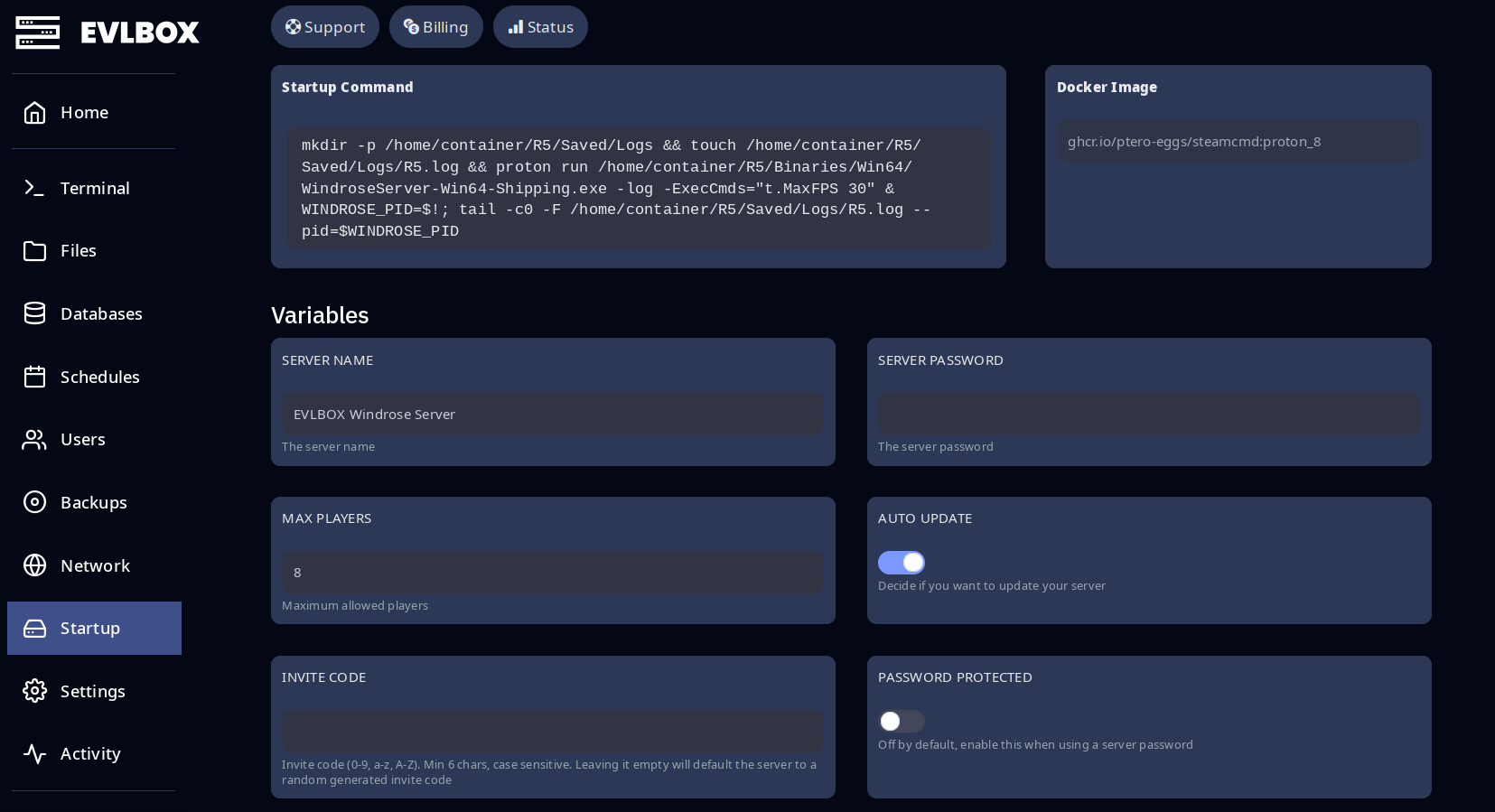
If you’d rather use the auto-generated code, leave the Invite code field blank and start the server. Use Ctrl + F in the console to search for InviteCode once the server is up — the in-terminal find is separate from the browser’s find.
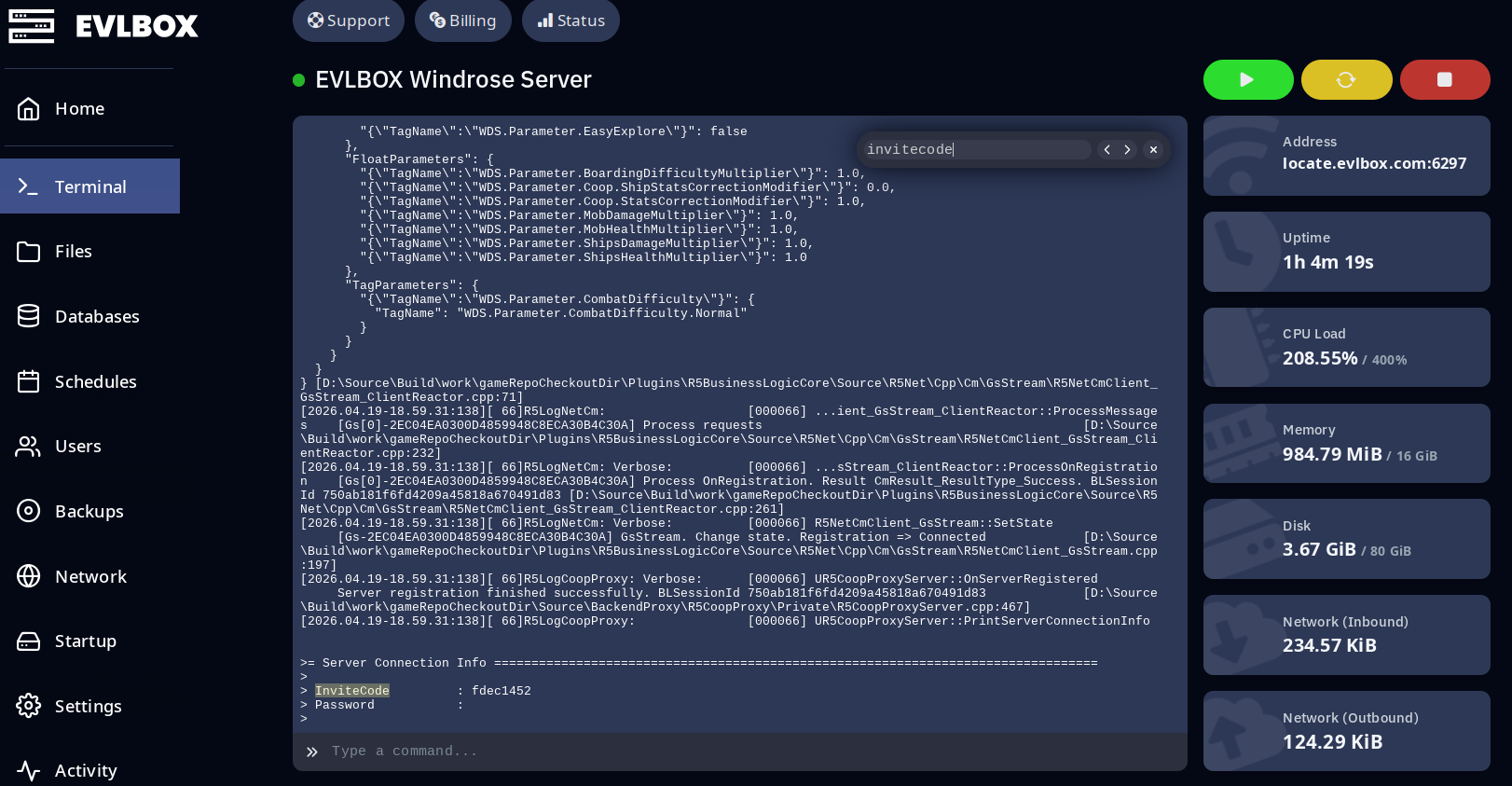
2. (Optional) Set a password
Section titled “2. (Optional) Set a password”- With the server stopped, in the Startup tab, enter a password in the Server Password field.
- Toggle Password Protected to On. This is required — without it the password is ignored.
- Start the server.
3. Find your server’s address
Section titled “3. Find your server’s address”EVLBOX assigns every server a stable hostname like locate.evlbox.com:6297. To find yours:
- Open the Terminal tab in the Nitro panel.
- The Address is shown in the stats card at the top-right of the page — click it to copy.
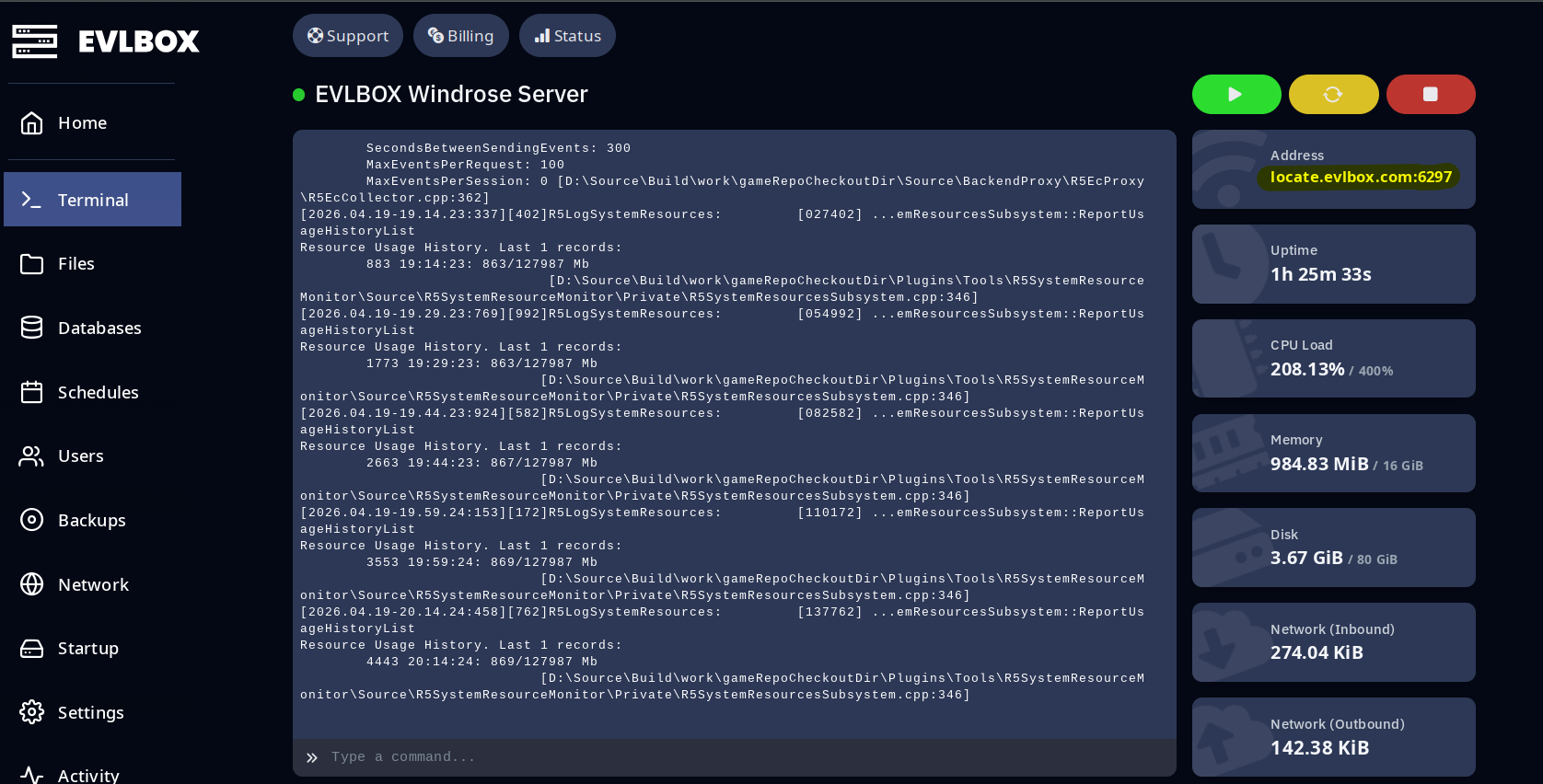
4. Connect from the game
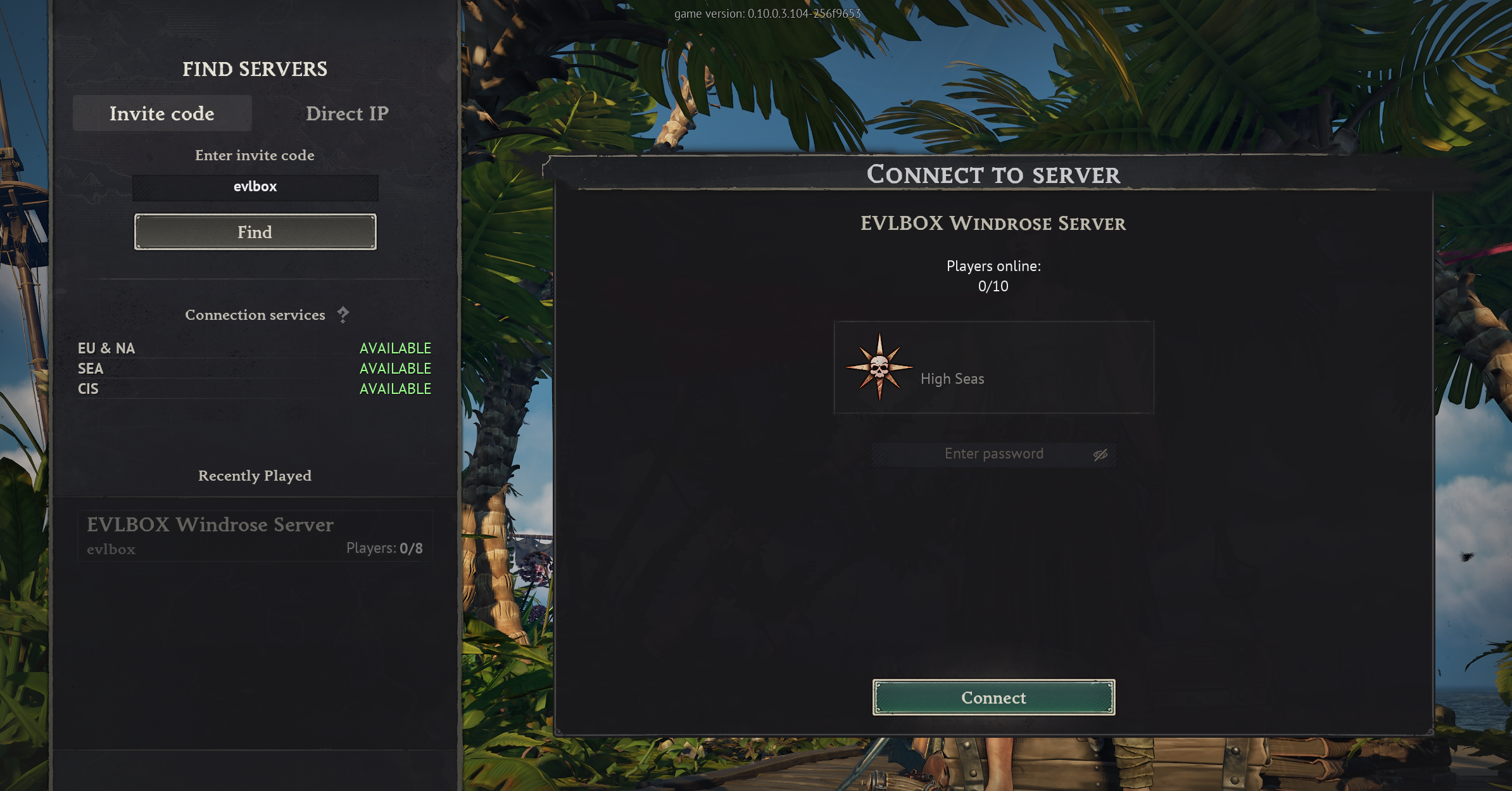
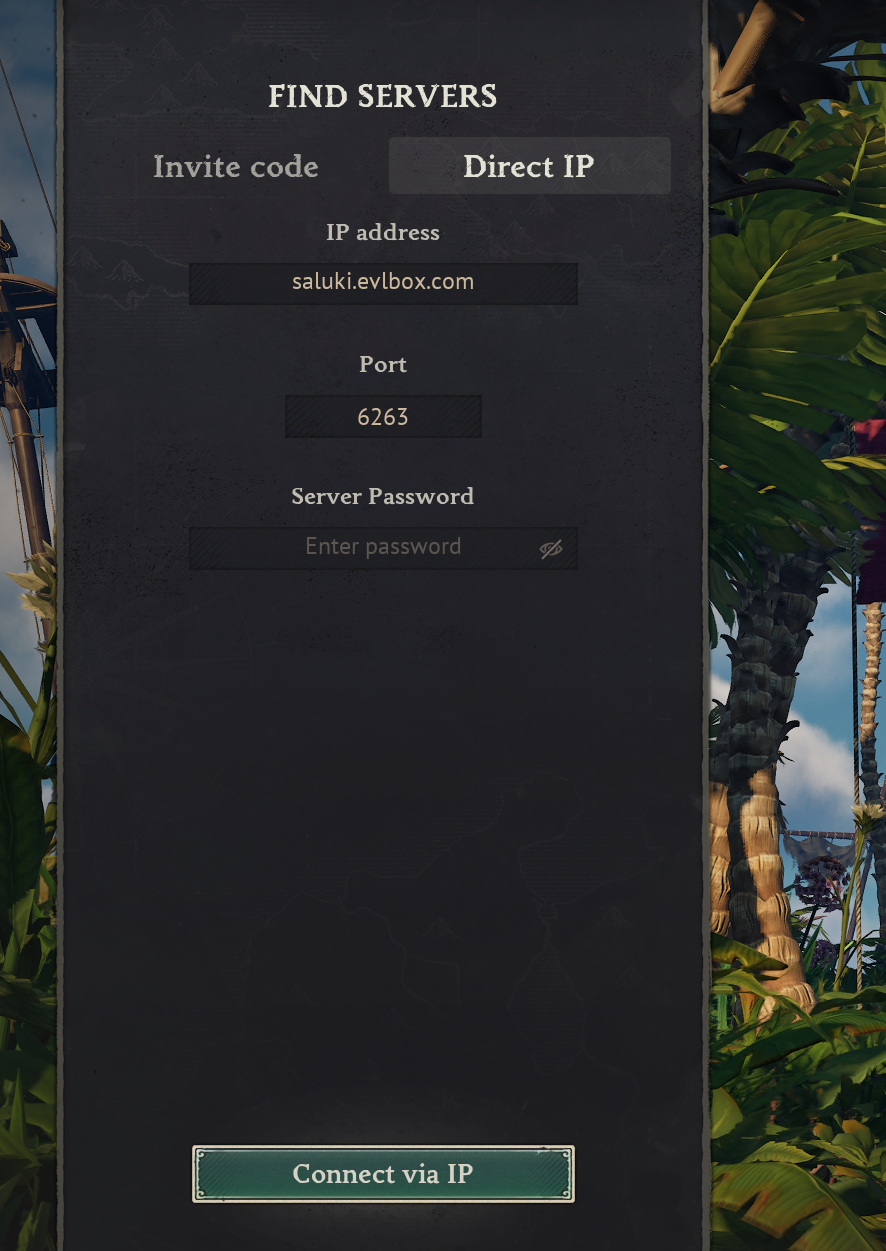
Section titled “4. Connect from the game”Launch Windrose and open the FIND SERVERS panel. There are two tabs: Invite code and Direct IP. Use whichever your crew prefers — the result is the same.
Option A: Invite code
Section titled “Option A: Invite code”- Select the Invite code tab.
- Type your invite code into Enter invite code and click Find.
- Your server appears in the list — click it.
- The CONNECT TO SERVER dialog opens. If you set a password, enter it under Enter password.
- Click Connect.
Option B: Direct IP
Section titled “Option B: Direct IP”- Select the Direct IP tab.
- In IP address, paste the hostname part of your server address (e.g.
locate.evlbox.com). - In Port, enter the port number (the digits after the
:, e.g.6297). - If you set a password, enter it under Server Password.
- Click Connect via IP.
Share the invite code or address (and password, if any) with your crew so they can join the same way.
Have a crew but no server? Grab a server here.