
World Management
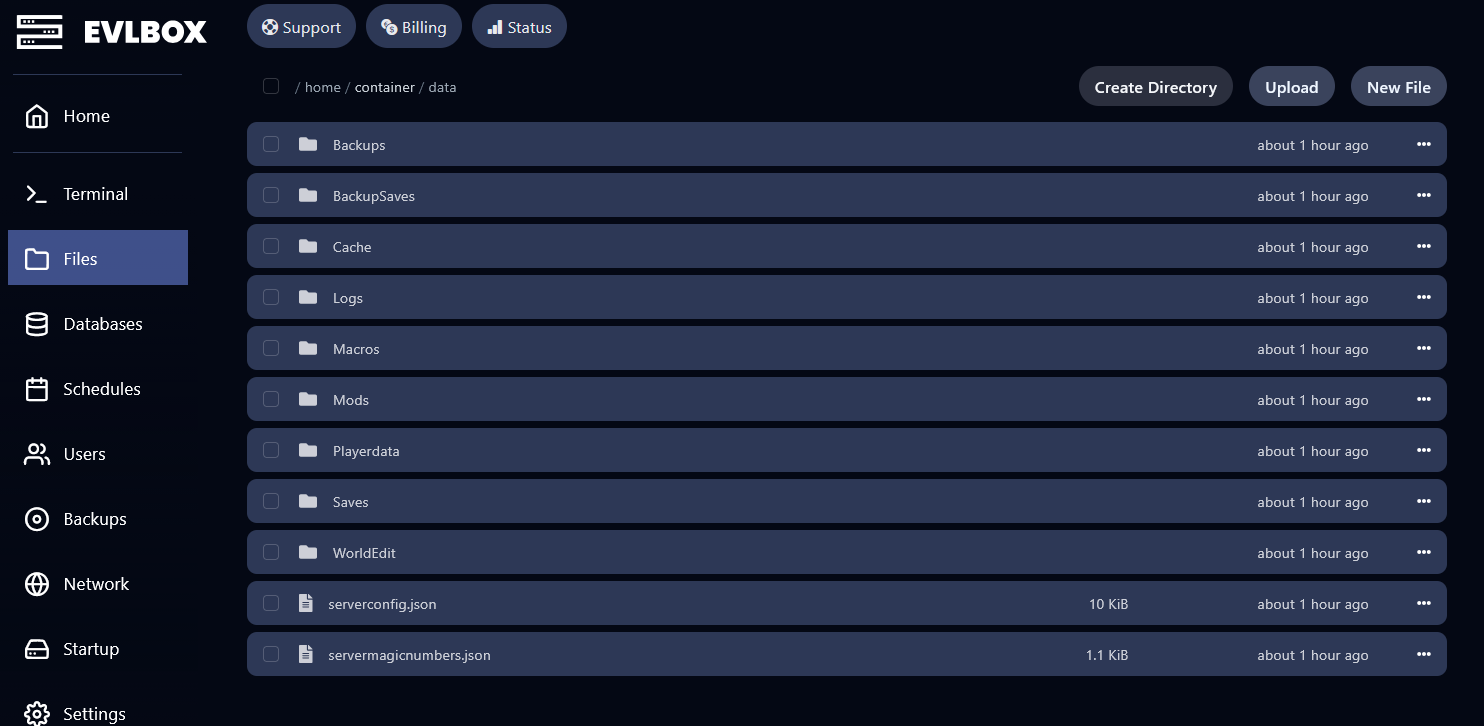
Your Vintage Story world save is stored in the data/Saves directory on your server. This guide covers transferring a singleplayer world, creating backups, and starting fresh.
Directorydata/
DirectorySaves/
- default.vcdbs Your world save file
DirectoryBackups/
- …generated by /genbackup
- serverconfig.json
How to Transfer a Singleplayer Save to Your Server
Section titled “How to Transfer a Singleplayer Save to Your Server”- On your local PC, find your Vintage Story save files. On Windows, they’re located at:
%appdata%\VintagestoryData\Saves\
- Find the
.vcdbsfile for the world you want to upload. - Log in to the EVLBOX panel and stop your server.
- In the Files tab, navigate to
data/Saves. - If a world file already exists (e.g.,
default.vcdbs), download it first as a backup, then delete it. - Upload your local
.vcdbsfile. - Rename the uploaded file to match the original save name (typically
default.vcdbs), or update theSaveFileLocationfield indata/serverconfig.jsonto point to your file’s name. - Start your server.
How to Create a Backup
Section titled “How to Create a Backup”Quick Backup via Console
Section titled “Quick Backup via Console”You can create a backup at any time without stopping the server by running this in the Console tab:
/genbackupThis saves a copy of the current world to the data/Backups folder. You can optionally provide a filename:
/genbackup before-modsDownloading a Backup
Section titled “Downloading a Backup”To download a copy to your local machine:
- Stop your server in the EVLBOX panel to ensure the save is fully written to disk.
- In the Files tab, navigate to
data/Saves(for the live world) ordata/Backups(for/genbackupcopies). - Click the three dots next to the
.vcdbsfile and select Download. - Store the file somewhere safe locally.
How to Restore a Backup
Section titled “How to Restore a Backup”- Stop your server.
- In the Files tab, navigate to
data/Saves. - Delete or rename the current
.vcdbsworld file. - Upload your backup
.vcdbsfile. - Make sure the filename matches what the server expects (check
SaveFileLocationindata/serverconfig.jsonif unsure — it defaults todefault.vcdbs). - Start your server.
How to Reset Your World (Start Fresh)
Section titled “How to Reset Your World (Start Fresh)”- Stop your server in the EVLBOX panel.
- In the Files tab, navigate to
data/Saves. - Delete the existing
.vcdbsworld file. - Start your server. Vintage Story will generate a brand new world automatically.