
GameSwap
GameSwap
Section titled “GameSwap”GameSwap changes which game your server runs — Minecraft today, Palworld tomorrow, back to Minecraft next month — without losing anything. Before the new game is installed, your current game can be frozen: its files, saves and settings are stored safely off your server so you can bring them back later, exactly as you left them.
Frozen games are stored off your server and don’t use your disk space.
GameSwap vs Backups
Section titled “GameSwap vs Backups”They protect different things.
| Backups | GameSwap | |
|---|---|---|
| What’s captured | Your content — save games, worlds, configs | The entire server filesystem |
| Mods, plugins, modified jars | Not included | Included |
| What it’s for | Recovering or rolling back the game you’re running | Changing which game the server runs |
Restoring a frozen game brings back the entire server setup — modpack, plugins and any modified files — not just the world.
Finding GameSwap
Section titled “Finding GameSwap”Open your server in the Nitro Panel and choose GameSwap in the sidebar — the swap-arrows icon.
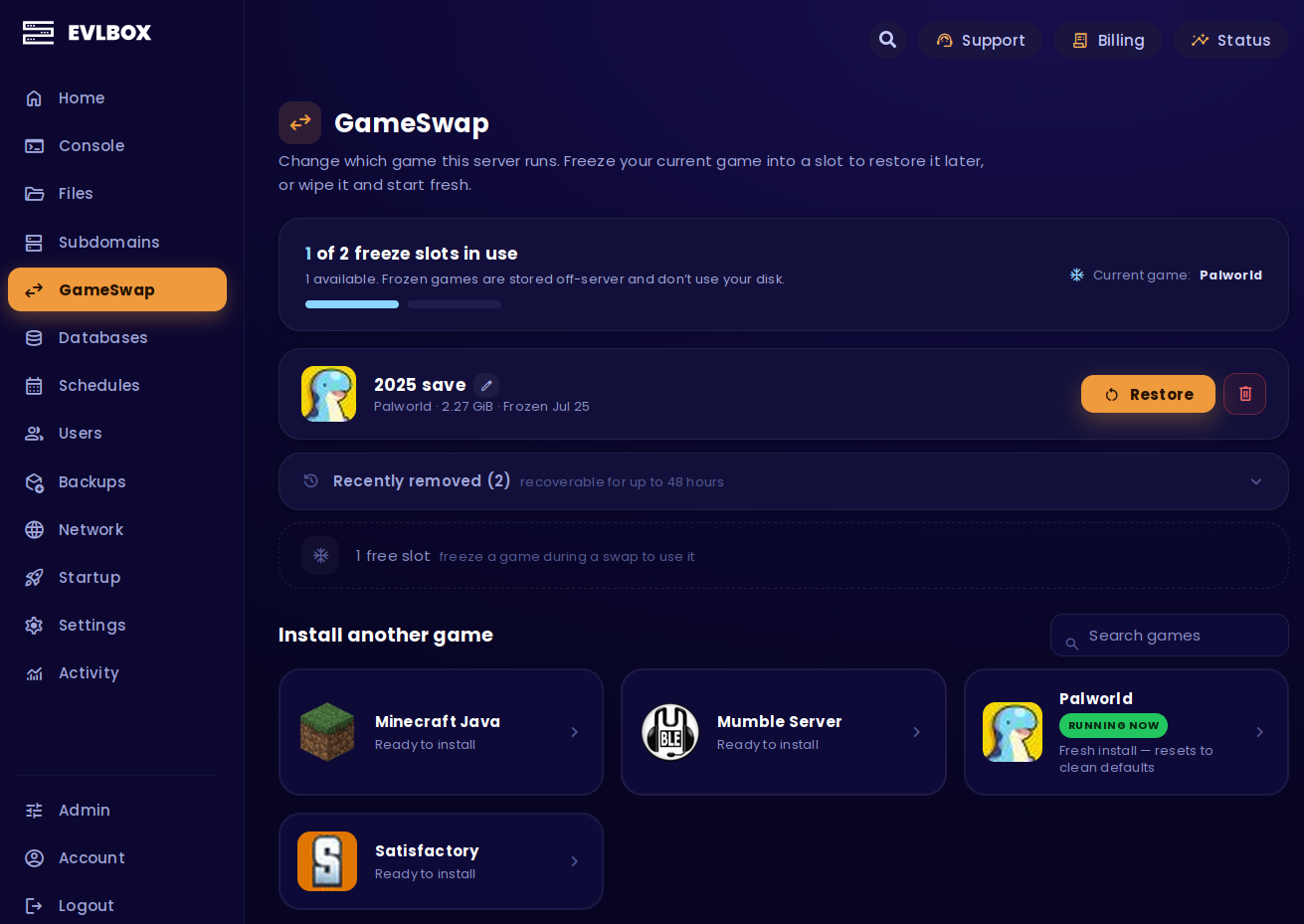
The page has three parts: your freeze slots, your frozen games, and the catalog of games you can install.
Using GameSwap
Section titled “Using GameSwap”-
Pick a game from the catalog. Your current game is marked RUNNING NOW — picking it does a Fresh install: a clean reinstall with default settings, and any startup settings you changed are reset.
-
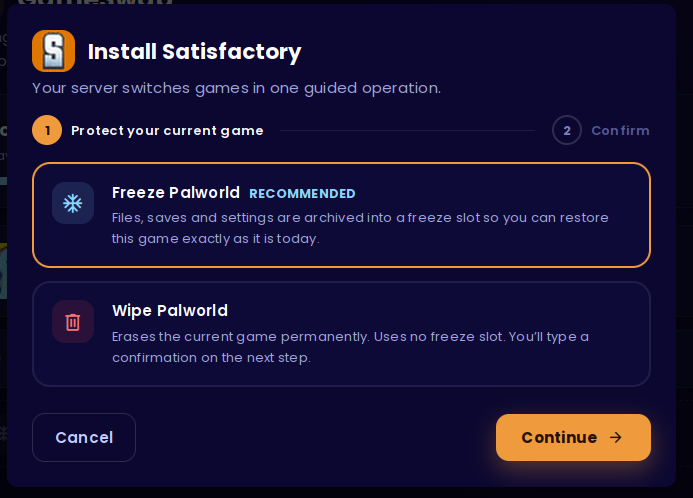
Choose what happens to the game that’s on the server now.
- Freeze (recommended) — archives it into a freeze slot so you can restore it exactly as it is today. Needs a free slot.
- Wipe — erases it permanently. Uses no slot.
-
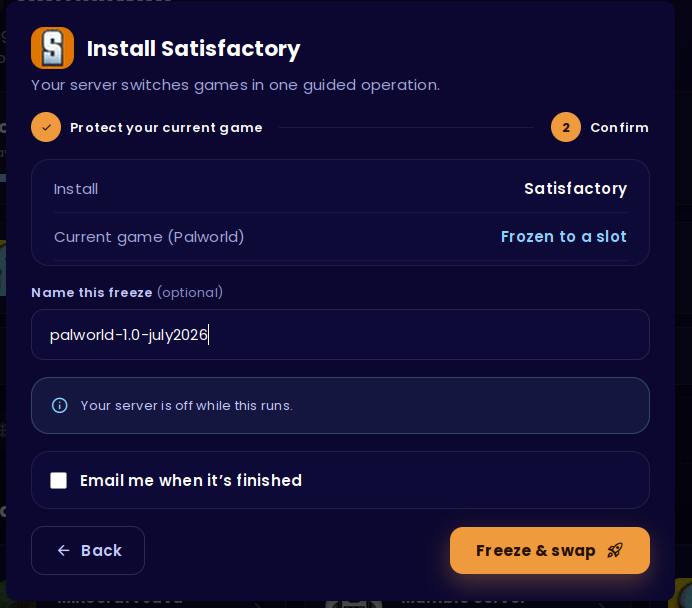
Confirm. You can name the freeze (optional, up to 60 characters) and tick Email me when it’s finished. If you chose to wipe, you’ll type a short confirmation code.
-
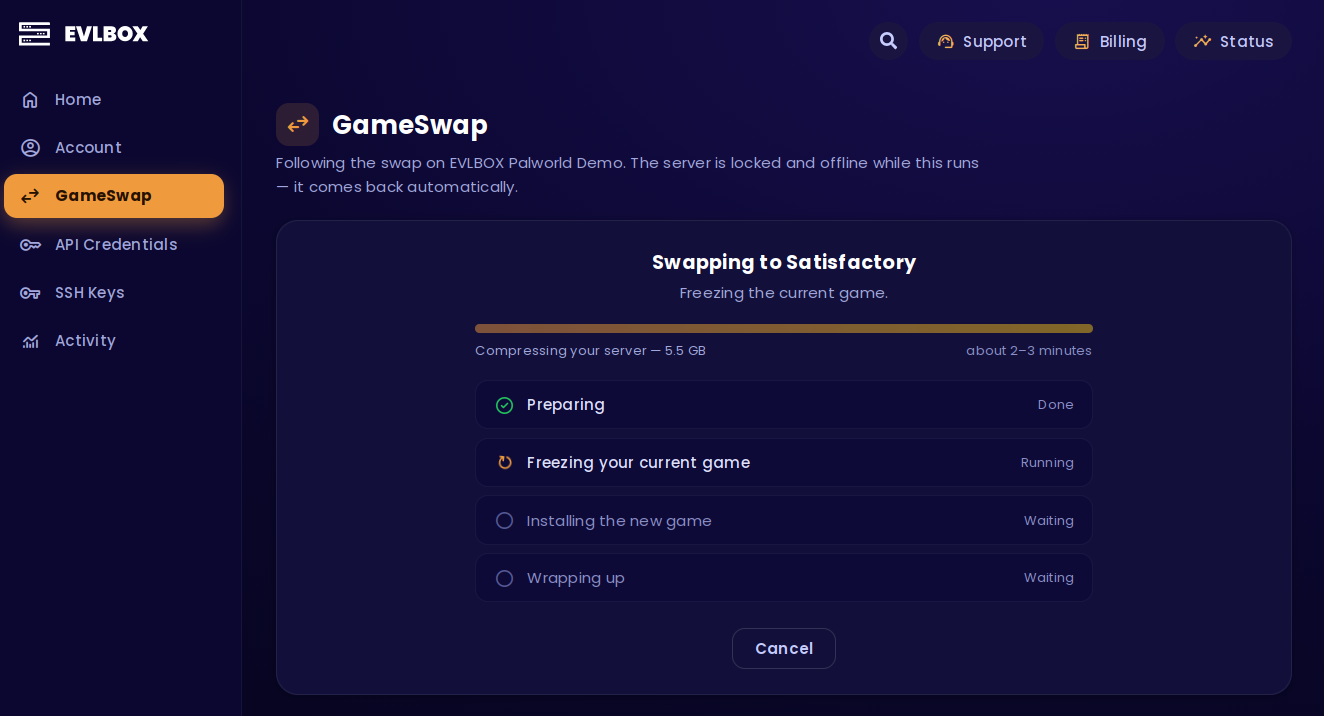
Start it. The progress page shows the current phase and a rough time range. You can close the page — it keeps running — and you can cancel, which is acted on within a few seconds.
Restoring a frozen game
Section titled “Restoring a frozen game”From Frozen games, choose Restore. You’ll get the same freeze-or-wipe choice for whatever is running right now, plus a checkbox:
“Free up this freeze slot afterwards” is on by default. The slot becomes available immediately, and the copy you restored stays recoverable for 48 hours before it is removed. Uncheck it to keep that freeze in its slot.
Restore vs Recover
Section titled “Restore vs Recover”- Restore puts a frozen game back onto your server, replacing what’s running now.
- Recover pulls a deleted freeze back into a slot before its 48 hours are up. You need a free slot, and your running server isn’t touched.
Recently Deleted Freeze Slots
Section titled “Recently Deleted Freeze Slots”Deleting a frozen game frees up the slot immediately, but the copy stays recoverable for 48 hours. After that it’s gone for good. The same applies to a freeze you restored with free up this freeze slot afterwards ticked.
The 48-hour clock is anchored — recovering or restoring again doesn’t extend or reset it.
Restoring again inside that window does not consume a restore cooldown.
Freeze slots
Section titled “Freeze slots”A slot is storage that holds one frozen game — three slots hold three different games at once. A slot is occupied from the moment you freeze a game until that game is restored out of it or deleted.
Slots are not consumed by swapping. Installing a game, doing a fresh install, or restoring a frozen game does not use up a slot — only freezing a game does, and the slot is released when that frozen game leaves it.
Free and paid tiers
Section titled “Free and paid tiers”Tiers are per server, not per slot. Every server starts with one free slot. Buying a single slot moves that entire server to the paid tier — including the free slot it already had — so you get two usable slots and the paid limits, while paying for one.
| Free tier | Paid tier | |
|---|---|---|
| Wait between swaps | 6 hours | None |
| Wait between restores | 24 hours | 1 hour |
There’s also a ceiling on how many times a server can be frozen in a single day — a few swaps a day — on both tiers. Hitting it shows the same wait-and-try-again message as a cooldown.
Buying a slot
Section titled “Buying a slot”- From the GameSwap page, choose Order a slot. This opens the billing portal and asks you to log in.
- In the client area, use the left-hand Actions panel (below the support PIN) → View Available Addons.
- Choose the GameSwap Slots addon, then pick the service for the right server. Services are listed by game and location (for example “Palworld – Los Angeles”), not by your server’s name — so if you have several servers, match on that.
- A new slot can take a few minutes to appear on the GameSwap page.
The same steps are on the GameSwap page itself, collapsed under the slot purchase section — follow that version if anything here looks different. Billing lives in a separate system to the game panel, which is why it isn’t a single click.
What happens to your stuff
Section titled “What happens to your stuff”When you freeze, everything on the server — game files, saves, worlds, configs, mods and plugins — is archived together into the slot and stored off your server. When you restore, it comes back as it was.
A GameSwap never touches these, on both the freeze and the wipe path:
- Databases — they stay exactly as they are, with all their data.
- Subdomains — your subdomain keeps working.
Ports are handled for you. Different games need different numbers of them and the system sorts that out during the swap — you never pick ports yourself.
Wiping erases the current game and its files permanently. It can’t be undone, and that’s why you type a confirmation code.
The game I want isn’t there
Section titled “The game I want isn’t there”It’s in the catalog but greyed out, with a note like Needs more memory & disk. The game exists, but your server’s resources are below what it needs.
It’s not in the catalog at all. We don’t offer it yet. Request it through support — the catalog is expanded based on requests.
Subusers
Section titled “Subusers”GameSwap permissions are granted separately — read, swap, restore and delete are each their own permission, so a subuser may see the page without the buttons to act on it. See Share Control Panel Access to change what they can do.