
Server Settings (.evlbox.toml)
Every supported game server includes a small settings file, .evlbox.toml, in the root of its files. Edit it in the File Manager and save — that’s how you light the Support Beacon, which sends extra context about your problem to our support team and lets them access your server to help, and how you control your automatic backups. No extra logins or dashboards. Changes apply automatically within about 10 minutes.
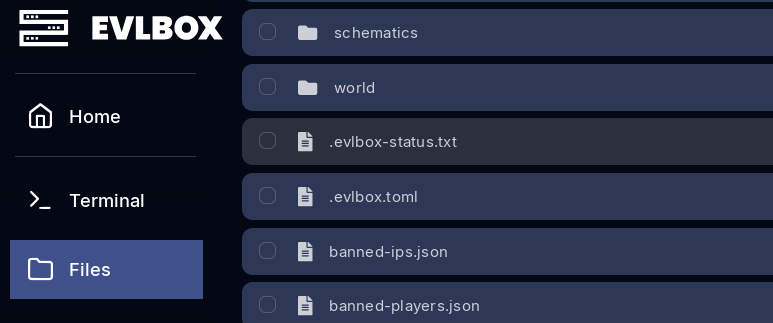
The two files
Section titled “The two files”| File | Who writes it | What it’s for |
|---|---|---|
.evlbox.toml |
You | Your settings. We create it with defaults, and if it’s ever deleted we re-create it with your saved settings — we never change what you’ve set. |
.evlbox-status.txt |
EVLBOX | Read-only report: what the system is doing, backup status, and Support Beacon codes. Don’t edit it — it gets rewritten. |
The Support Beacon
Section titled “The Support Beacon”Lighting the beacon sends our support team extra context about your problem and lets them access your server to investigate:
[support]beacon = "server crashes every night around 3am"discord = "yourdiscordname" # optional, helps staff reach you-
Write a short description of the problem into
beacon(up to 60 characters) and save the file. -
Within 5–10 minutes, a support code appears in
.evlbox-status.txt— it looks likeEMBER-4821and is valid for 24 hours.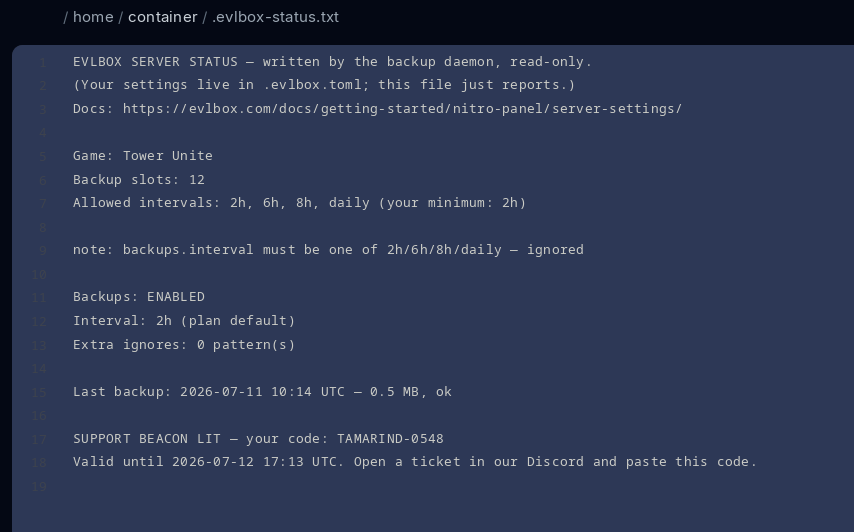
-
The server owner also gets a confirmation email from
noreply@evlbox.comwith the code — even if a subuser lit the beacon. A beacon does not open a ticket by itself.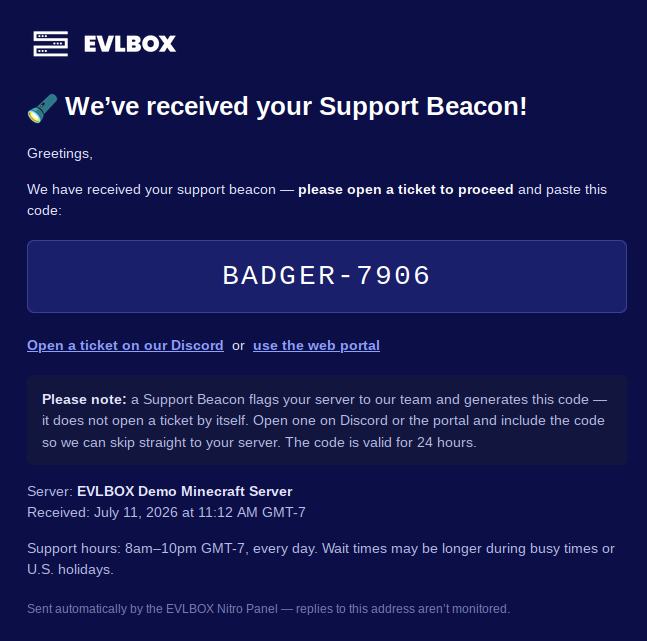
-
Open a ticket in the EVLBOX Discord or at portal.evlbox.com and paste the code. Staff instantly see which server it is and what’s wrong — no twenty questions.
To light the beacon again later, change the text. Limit: one beacon per server per hour (edits within the hour are ignored — the first message is the one staff see).
Backup settings
Section titled “Backup settings”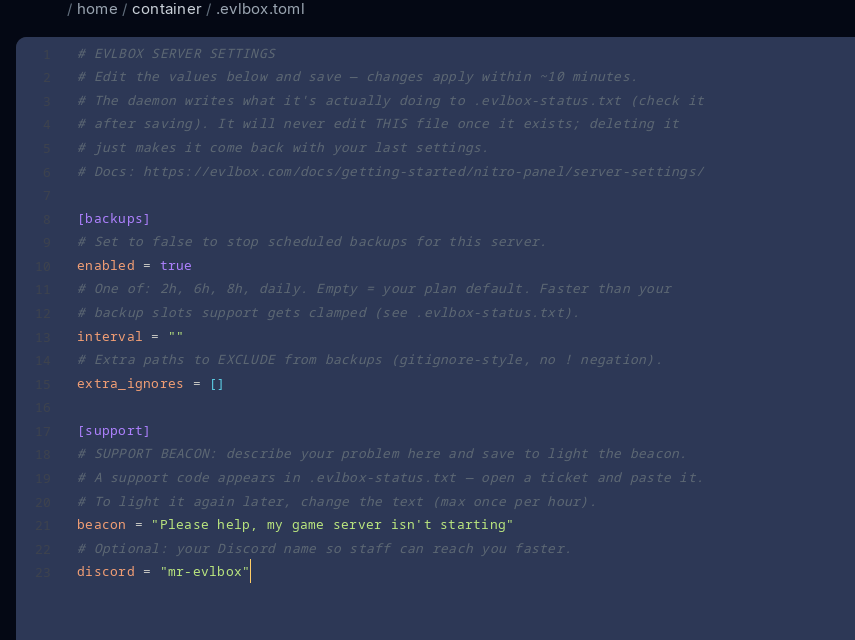
[backups]enabled = trueinterval = "8h" # one of: 2h, 6h, 8h, daily. "" = plan defaultextra_ignores = [ # extra folders/files to EXCLUDE from backups "dynmap/",]enabled— set tofalseto stop scheduled backups for this server,trueto turn them back on. This has the same effect as toggling the EVLBOX backup schedule in the panel.interval— how often backups run. The fastest allowed interval depends on your plan’s backup slots: 1 slot → daily, 2–6 → 8h, 7–11 → 6h, 12+ → 2h. Asking for faster than your plan supports isn’t an error — it’s adjusted to your plan’s minimum and noted in.evlbox-status.txt. Slower is always allowed.extra_ignores— extra exclude patterns (gitignore-style) for things you don’t need backed up, like rendered maps or media dumps. Up to 50 patterns; you can only exclude more, never re-include files EVLBOX already excludes.
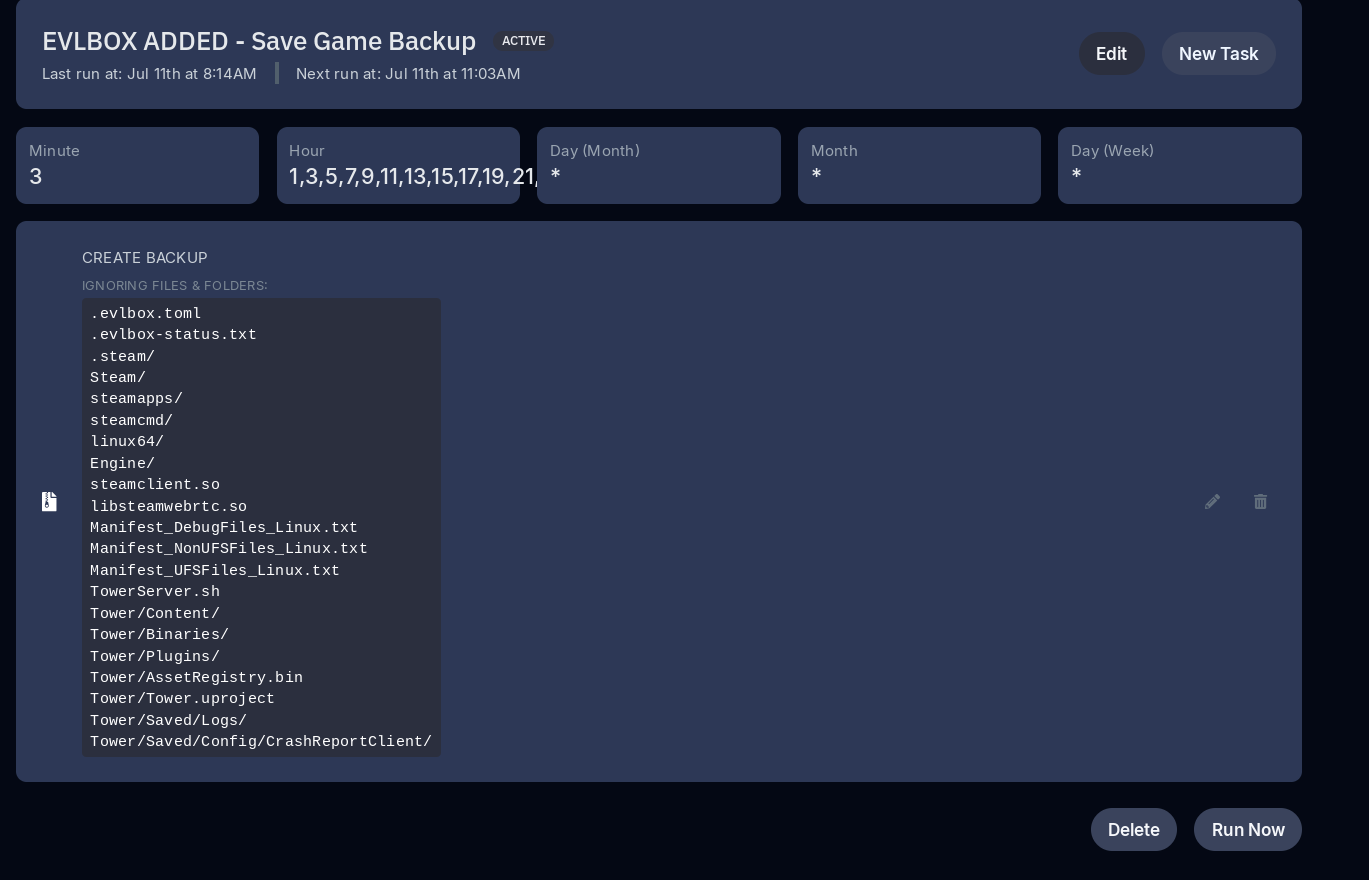
Backups auto-rotate at your slot limit (oldest unlocked backup is deleted first) — a faster interval doesn’t grant more storage, it just cycles your slots faster.
Supported games
Section titled “Supported games”Automatic backups (and the settings file) are currently live for:
- Tower Unite
- Satisfactory
- Palworld
- Minecraft — all variants we host (Paper, Forge, NeoForge, Fabric)
- FOUNDRY
- Windrose
- Project Zomboid
More games are coming. If your server doesn’t have a .evlbox.toml file yet, its game isn’t supported — there’s nothing to configure.
Backups cover your save/world data and configuration — never reinstallable game files, mods, caches, or logs. That’s why a Minecraft backup is megabytes even when the server folder is gigabytes.