
How to Connect to your StarRupture Server
This guide covers naming your server, setting a join password, and getting your crew into the world.
1. Set the server name and passwords
Section titled “1. Set the server name and passwords”- Log in to the Nitro Panel and open your StarRupture server.
- Stop the server if it’s running.
- Open the Startup tab.
- In Server Name, enter the name players will see once they connect.
- In Player Join Password, set a password if you want the server private. Leave it blank for an open server.
- In Admin Password, set a strong password. This protects the server’s management interface. It’s disabled by default for security, but set the password anyway so nobody can claim the server if it’s ever enabled.
- Go to the Console tab and start the server.

2. Find your server address
Section titled “2. Find your server address”- In the Nitro panel, open the Console tab.
- Find your server address and assigned port, for example
203.0.113.10:26900. - Use the numeric IP and port together. If the Console shows a hostname instead, ask support for the corresponding numeric IP and keep the assigned port.
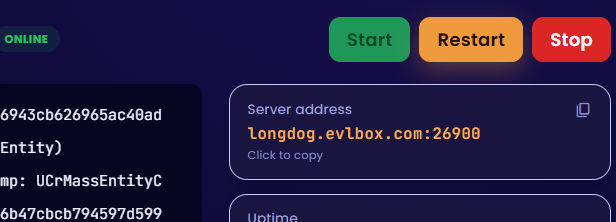
Example panel location. This capture shows a hostname; use your own server’s numeric IP with its assigned port in the game.
3. Join from the game
Section titled “3. Join from the game”Players join the dedicated session using the numeric IP and assigned port.
- Check the Console tab and confirm the server shows Running.
- Launch StarRupture and choose Join Game.
- Select Dedicated Server.
- Enter the full
IP:portfor your server. - Enter the Player Join Password if you set one. Leave it blank if you didn’t.
- Click Confirm.
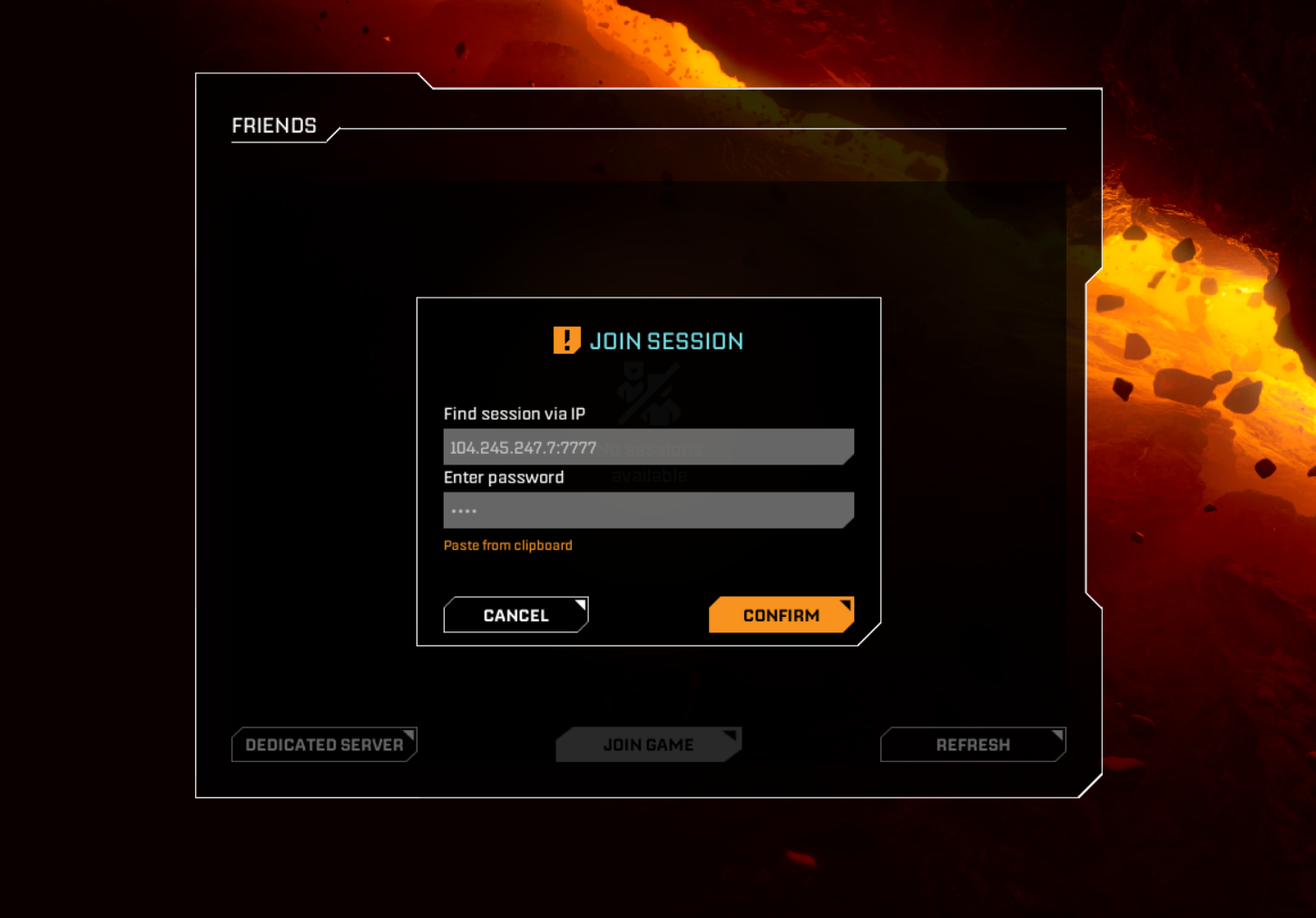
Use your own assigned port, even if this example shows 7777.
The first player into a brand-new server lands in a fresh world. The server autosaves every five minutes by default, and you can force a save at any time with ESC → Save.
4. Coming back after a restart
Section titled “4. Coming back after a restart”Nothing to do. With the default Startup settings, an existing session loads the file selected by Save Game Name (normally AutoSave0.sav). There’s no “empty session” step, no Manage Server screen, no re-entering passwords. Players just join.
Troubleshooting
Section titled “Troubleshooting”| Issue | What to check |
|---|---|
| Server not found while Running | Re-copy your numeric IP and allocated port. If it still fails, contact support and report that the server is running but not found. |
| Connection times out on first boot | Wait until the panel shows Running; initial downloads can take 10–20 minutes. |
| Manage Server times out | That interface is disabled. See the Manage Server guide for the panel equivalents. |
| “Wrong password” with the correct password | Trailing space in the Player Join Password field. Retype it and restart. |
| Joined, but the world is empty | The server started a fresh session. Check that Session Name on the Startup tab matches the folder in StarRupture/Saved/SaveGames/ on the Files tab. |
| Everyone was kicked at once | Check the console for a restart, crash or resource limit. If it repeats, open a ticket and we’ll look at resources. |
| Client says the server version doesn’t match | Your game updated before the server did, or the reverse. Restart the server to pull the latest build. |
| Server is stuck on Starting for 30+ minutes | Watch the Console tab. If SteamCMD is still downloading, wait. If the log stops after Running on Debian, restart it once, then open a ticket. |
Questions? Reach out on the support Discord or create a ticket.