
Move a Singleplayer World to your Valheim Server
Need a Valheim server? Spin one up with EVLBOX →
Already have a world you’ve put a hundred hours into? You can move it onto your server. It’s a folder copy, and the whole job is five steps.
Your character isn’t part of this
Section titled “Your character isn’t part of this”This catches out nearly everyone who imports a world, so it’s worth saying plainly: if your character looks wrong after joining, you picked the wrong character at the menu. Nothing was lost.
1. Find your world on your PC
Section titled “1. Find your world on your PC”Valheim keeps singleplayer worlds in a worlds_local folder:
| OS | Where to look |
|---|---|
| Windows | %USERPROFILE%\AppData\LocalLow\IronGate\Valheim\worlds_local\ |
| Linux | ~/.config/unity3d/IronGate/Valheim/worlds_local/ |
Paste the Windows path straight into the File Explorer address bar — AppData is hidden, so browsing to it by hand doesn’t work unless you’ve turned hidden folders on.
Inside, each world is a folder named after the world.
2. Know what you’re copying
Section titled “2. Know what you’re copying”Valheim 1.0 changed how worlds are stored. A world is now a folder that looks like this:
MyWorld/├── _main.7.fwl2 world metadata — seed and world modifiers├── _main.7.db2 the main world database├── _main.7.chunks chunk index├── _main.7.ok integrity marker├── 00_00__0_3.chunk terrain, one file per region you've explored├── 1e_20__1_1.chunk└── ...Copy the entire folder. Don’t pick files out of it.
That number in _main.7 is a save counter that goes up every time the world saves — a brand new world is _main.0, a well-played one might be _main.34. Yours will not be 7. It doesn’t matter what the number is, as long as you move the whole folder and leave every file in it alone.
Size: a fresh world is a couple of megabytes. A world you’ve explored properly can run to hundreds, because every region you’ve visited is its own .chunk file. Budget some time for the upload.
3. Stop the server
Section titled “3. Stop the server”Stop it from the Console tab in the Nitro Panel. Stop, not restart.
If your server already has a world you care about, take a backup before you go any further.
4. Upload the world
Section titled “4. Upload the world”Your world folder goes here on the server:
/.config/unity3d/IronGate/Valheim/worlds_local/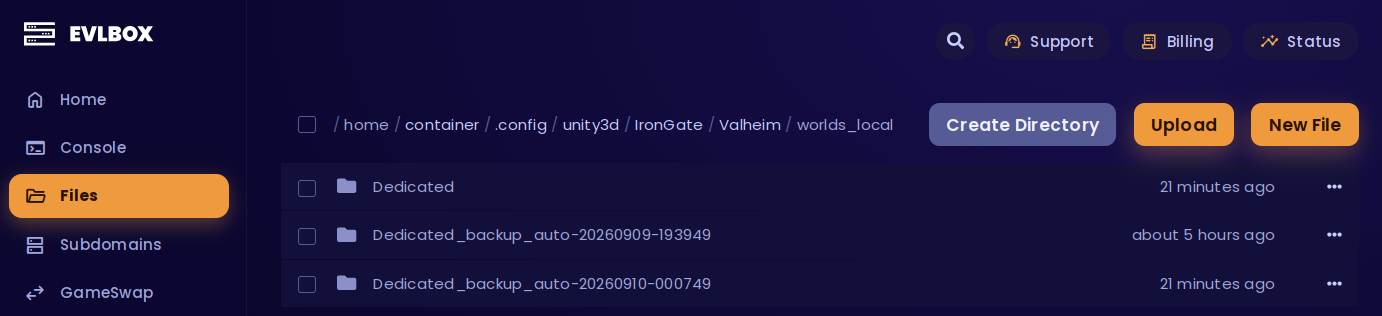
Pick whichever route suits you.
Option A — SFTP
Section titled “Option A — SFTP”Best for large worlds, and the only comfortable way to move a folder full of chunk files. We suggest Cyberduck or FileZilla — both are free.
Your details are on the Settings tab of your server:
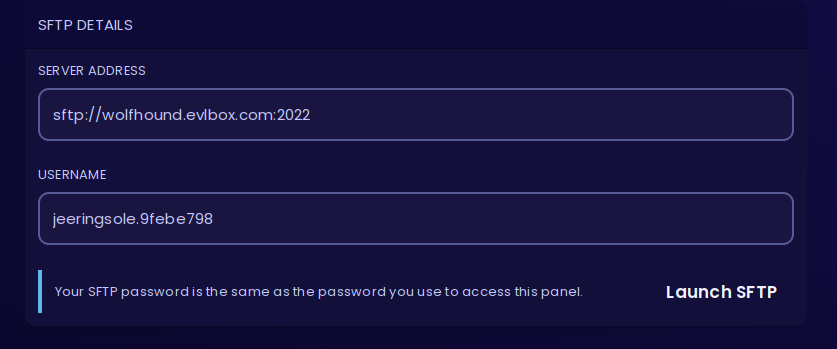
| Field | What to enter |
|---|---|
| Server / host | The address shown, on port 2022 — for example wolfhound.evlbox.com port 2022 |
| Username | The full string shown, including the dot and everything after it |
| Password | Your Nitro Panel password — the one you log in to the panel with |
| Protocol | SFTP |
- Click Launch SFTP in the panel to open the connection in your installed client, or enter the details above by hand.
- Accept the fingerprint prompt the first time you connect — that’s your client noting the server it hasn’t seen before.
- Navigate to
.config/unity3d/IronGate/Valheim/worlds_local/. - Drag your whole world folder in.
Option B — the panel file manager
Section titled “Option B — the panel file manager”No extra software, but the file manager can’t upload a folder — so send it as a zip.
- On your PC, zip the world folder itself. You want the folder inside the archive, not a pile of loose files.
- In the panel, go to the Files tab and into
.config/unity3d/IronGate/Valheim/worlds_local/. - Click Upload and send the zip.
- Click the ⋯ menu at the end of the zip’s row and choose Unarchive.
- Check that you now have a folder named after your world, with the
_main.*files inside it. Delete the zip once you’re happy.
5. Set the World Name and start
Section titled “5. Set the World Name and start”The World Name on the Startup tab has to match your world’s folder name exactly.
A folder called MyWorld means a World Name of MyWorld — not myworld, not MyWorld.db. It’s case-sensitive, and it’s capped at 20 characters, so rename the folder before you upload if yours is longer.
Then start the server and watch the Console tab for:
ZNet.LoadWorld: MyWorld...Game server connectedThat first line is the confirmation you want — it’s the server telling you which world it actually loaded.
Bringing a pre-1.0 world
Section titled “Bringing a pre-1.0 world”If your world is a WorldName.db and WorldName.fwl pair rather than a folder, it’s from before Valheim 1.0. Upload the two files into worlds_local/ and set the World Name to the filename without its extension — Valheim converts it to the 1.0 format when it loads.
Getting a world back off the server
Section titled “Getting a world back off the server”The same trip in reverse, if you want to keep playing solo.
- Stop the server.
- Download the world folder from
.config/unity3d/IronGate/Valheim/worlds_local/. Leave the*_backup_auto-*folders behind. - Drop it into
worlds_local/on your PC, using the paths in step 1.
It shows up in your singleplayer world list next launch. Your character already works — it never left your machine.
Troubleshooting
Section titled “Troubleshooting”| Issue | What to check |
|---|---|
| Joined and got an empty new world | World Name doesn’t match the folder name. Case matters. Stop the server and fix it — your upload is fine. |
| World loaded but progress is missing | The server was running during the upload and overwrote it. Stop the server and upload again. |
| Console shows a different world name than expected | ZNet.LoadWorld tells you what actually loaded. Match the Startup tab to your folder. |
| Unarchive left loose files, not a folder | The zip was made from the folder’s contents. Create a folder in worlds_local/ named after your world and move the files into it. |
World isn’t in worlds_local on your PC |
Steam Cloud save that hasn’t synced down. Load it once in game, quit properly, look again. |
| Upload keeps timing out | Large explored worlds are hundreds of megabytes. Use SFTP rather than the file manager. |
Questions? Reach out on the support Discord or create a ticket.