
How to Connect to your Valheim Server
Need a Valheim server? Spin one up with EVLBOX →
There are three ways into your Valheim server: the address from your panel, an invite code, or the public server browser. The address works in every case, so start there.
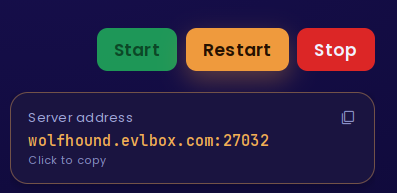
1. Copy your server address
Section titled “1. Copy your server address”- Log in to the Nitro Panel and click your Valheim server.
- You land on the Console tab. Your Server address sits just under the Start / Restart / Stop buttons.
- Click it. The whole address, port included, is copied to your clipboard.
2. Add the server in game
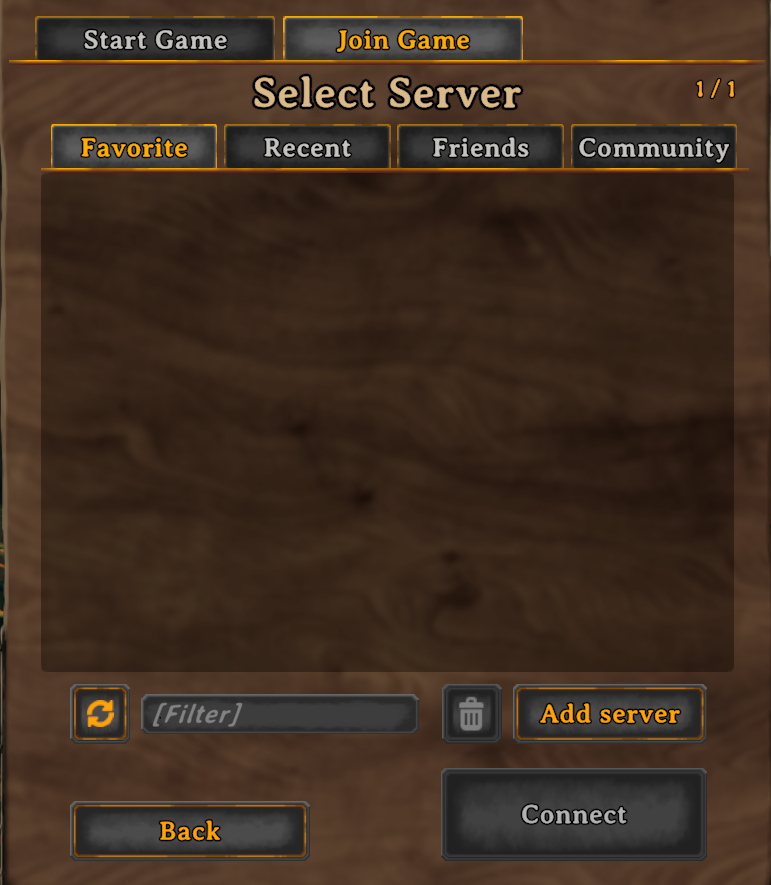
Section titled “2. Add the server in game”- Launch Valheim and choose Start Game.
- Pick your character and click Start.
- If Valheim prompts you to create a new world, click Cancel — you’re joining one, not making one.
- Choose Join Game, then click Add server.
3. Paste the address
Section titled “3. Paste the address”Paste the address you copied into the Enter IP or invite code box, then click Add server.
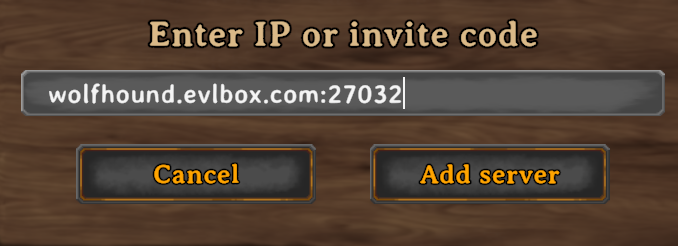
This same box takes an invite code instead, if you have one:
- From a player already in game — anyone in the world can share the join code from the in-game menu.
- From the console — when a crossplay server finishes starting, it prints a line to the Console tab registering the session with a join code.
4. Connect
Section titled “4. Connect”Your server now shows in the list on the Favorite tab. Select it and click Connect.
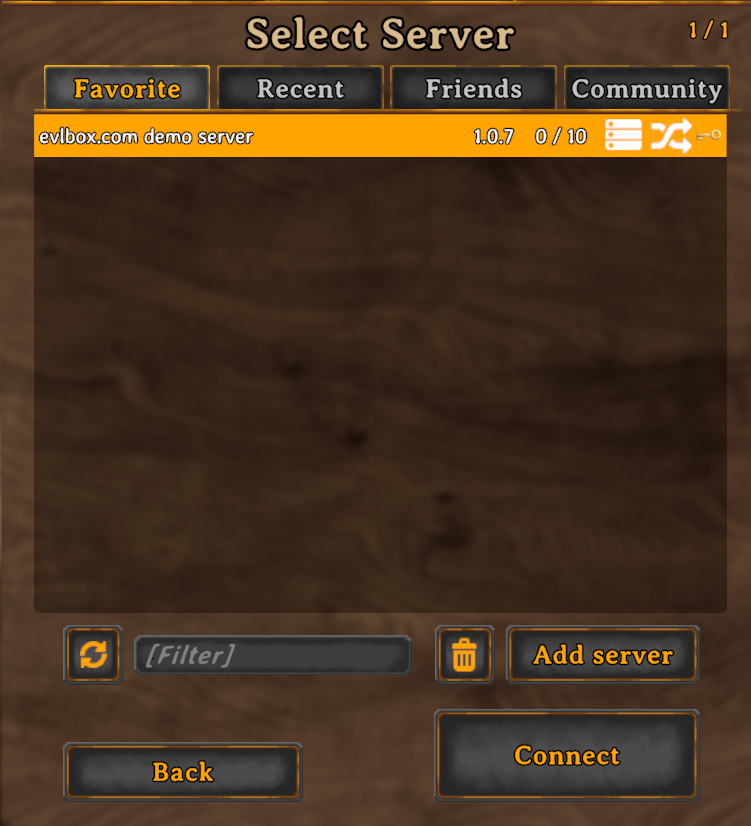
It stays in this list, so every session after this one is two clicks.
5. Enter the password
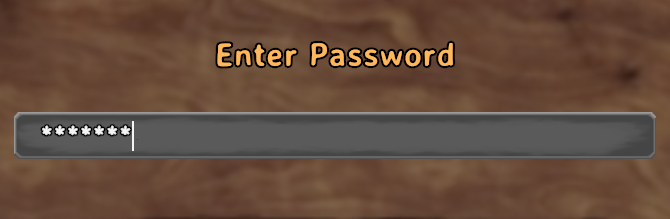
Section titled “5. Enter the password”If your server has a password, Valheim asks for it while connecting. This is the Server Password from the Startup tab in your panel.
Joining from the public browser
Section titled “Joining from the public browser”The Community tab lists public servers, and you can find yours by name there — but only if both of these are true:
- Public Server is on.
- A Server Password is set.
Valheim will not list a password-free server publicly. If you clear the password with Public Server still on, your server starts unlisted instead and the console says so. Everything above still works; only the Community listing goes away. See Password and visibility.
Troubleshooting
Section titled “Troubleshooting”| Issue | What to check |
|---|---|
| Server shows as online but every join fails | Check whether Enable Crossplay was turned off. A Steam-only server currently lists and answers queries but cannot be joined. Turn crossplay back on and restart — see Crossplay. |
| Server isn’t in the Community browser | Confirm Public Server is on and a password is set. A password-free server is always unlisted. Use the address instead. |
| Server won’t start at all | Check the console for the [EVLBOX] warning about your password appearing inside your server name. Valheim refuses to start when it does. Change one of the two. |
| Wrong password with the correct password | Passwords are letters, numbers, dashes and underscores only, 5 to 20 characters. Retype it on the Startup tab and restart. |
| Kicked for a version mismatch | Your client updated before the server did. Restart the server to pull the latest build. Leave Auto Update on so this fixes itself. |
| Joined an empty world you didn’t expect | The World Name on the Startup tab doesn’t match a world on the server, so Valheim generated a new one. Nothing is deleted — set it back and restart. See Move a Singleplayer World. |
| Your character looks wrong after joining | Characters live on your own PC, not the server, and travel with you. You picked a different character at the menu — nothing was lost. |
Questions? Reach out on the support Discord or create a ticket.