
Build 41 vs Build 42: Switching Your Server's Version
Build 42 went stable on 29 July 2026. Build 41 didn’t go anywhere — it lives on as a Steam branch called legacy41, and plenty of servers are still happily running it.
This guide covers which one you want, how to move your server between them, and how to keep both without giving one up.
The one rule that matters
Section titled “The one rule that matters”Your old world isn’t destroyed by switching, though. It’s still on disk until something overwrites it — which is exactly why the safe way to move between builds is to keep a copy of each. GameSwap does that for you.
Which build should you run?
Section titled “Which build should you run?”There’s no wrong answer here, only trade-offs.
Stay on Build 41 if:
- You have a long-running world your group cares about. It cannot come with you.
- Your mod list matters more than new features. The Workshop’s Build 42 catalogue is still filling in, and a mod that hasn’t been updated will not work on 42.
- Your players want the version they already know.
Move to Build 42 if:
- You’re starting a new world anyway.
- You want the overhauled map, animals, the rebuilt crafting system and the rest of what 42 added.
- Your must-have mods have Build 42 releases.
How to switch your server’s build
Section titled “How to switch your server’s build”The setting is Steam Beta Branch on the Startup tab in the Nitro Panel.
| Build you want | What goes in the field |
|---|---|
| Build 42 (current) | Leave it blank |
| Build 41 (legacy) | legacy41 |
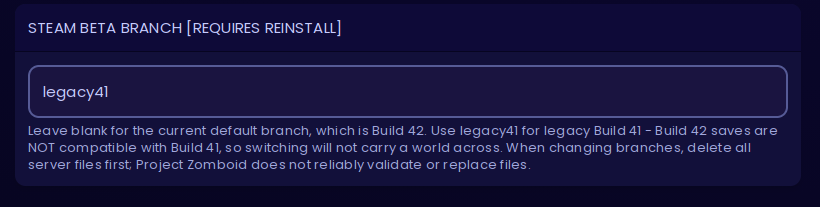
Changing that field on its own does nothing — it takes a reinstall, and the reinstall needs a clean slate first.
The procedure
Section titled “The procedure”-
Save anything you want to keep. Download your world from
.cache/Saves/Multiplayer— see uploading a singleplayer world for how to get at the files. Once you go past this step it’s gone. -
Stop the server.
-
On the Startup tab, set Steam Beta Branch —
legacy41for Build 41, blank for Build 42. Save. -
Go to the Files tab, tick the checkbox at the top to select everything, and delete it all.
-
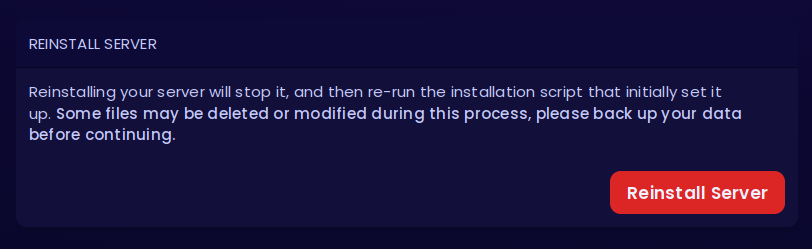
Go to Settings and click Reinstall Server.
-
Wait for the install to finish, then start the server. Check the console for the version it reports.
Keep both builds with GameSwap
Section titled “Keep both builds with GameSwap”Here’s the part most hosts can’t do.
GameSwap is included free with every EVLBOX game server, along with a freeze slot to use it with. It’s normally how you’d turn a Minecraft server into a Palworld one — but it works just as well on the same game, which makes it the cleanest way to run both builds of Project Zomboid without one costing you the other.
Freeze your Build 42 server, install a fresh one for Build 41, and your Build 42 world sits safely off-server, untouched, ready to come back whenever you want it. Two complete servers — files, saves, settings, mod lists — kept entirely independent. Flip between them at will.
No re-uploading worlds. No juggling zip files on your desktop. No paying for a second server.
Doing it
Section titled “Doing it”-
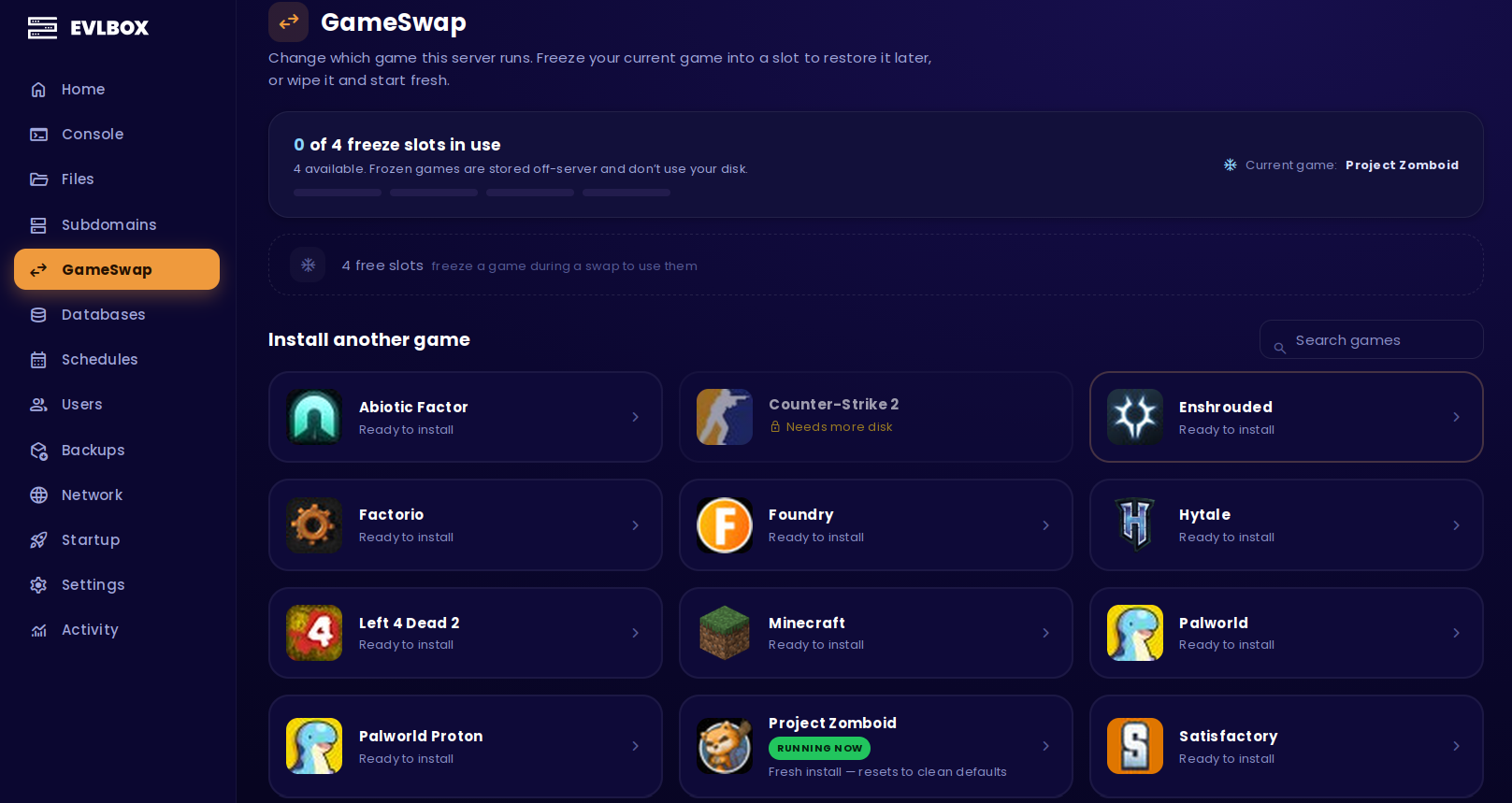
Open your server in the panel and choose GameSwap in the sidebar.
-
In the catalog, pick Project Zomboid — the one marked RUNNING NOW. Choosing your current game means a Fresh install: a clean copy with default settings.
-
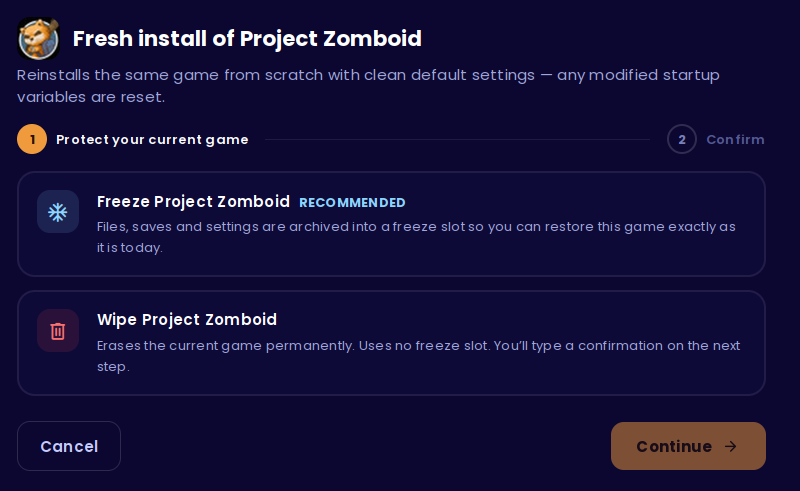
Step 1 — protect what’s running now. Choose Freeze. This is the whole point: your current server is archived into a freeze slot so you can restore it exactly as it is today. (Wipe erases it instead and uses no slot.)
-
Step 2 — name the freeze. Optional, but do it.
zomboid-b42beats guessing in three months’ time. Tick Email me when it’s finished if you don’t want to watch.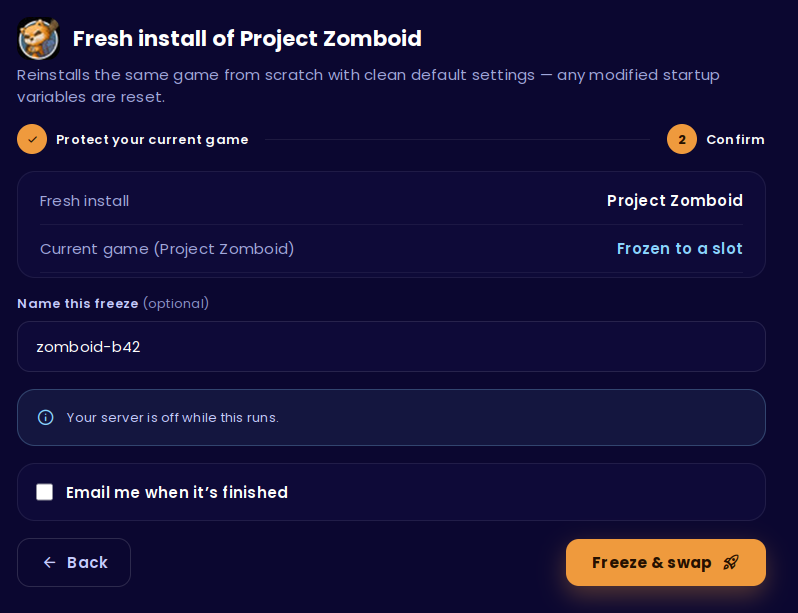
-
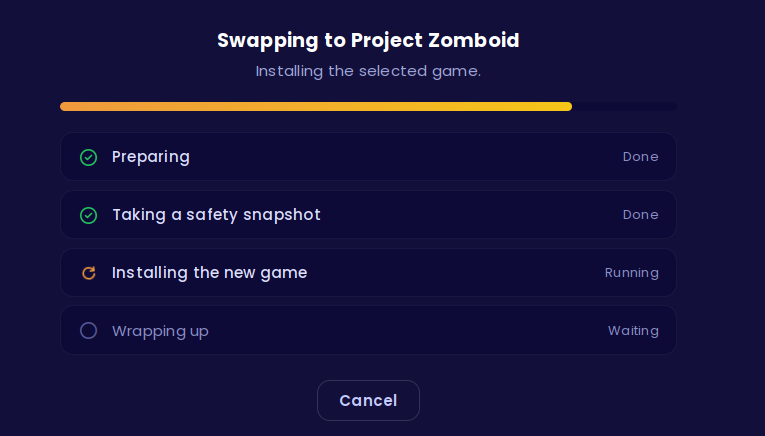
Click Freeze & swap. Your server goes offline and you get a progress screen — you can close the page, it keeps running.
-
When it’s done you have a clean Project Zomboid install. Now set the build you want, following the procedure above — the fresh install resets startup settings to defaults, so the branch has to be set after the swap, not before.
Going back
Section titled “Going back”Open GameSwap, find your frozen server under Frozen games, and choose Restore. You’ll be asked what to do with whatever is running at that moment — freeze it too if you want to keep it, wipe it if you don’t.
Restoring brings back everything: the build, the world, the mods, the settings, exactly as you left them.
Full detail on slots, cooldowns and tiers is in the GameSwap guide.
Troubleshooting
Section titled “Troubleshooting”| Issue | What to check |
|---|---|
| Server won’t start after switching build | Files from the other build are still present. Stop, delete everything on the Files tab, and reinstall again. |
| World is gone after switching | Expected — builds don’t share saves. Restore your freeze, or re-upload the world you downloaded. |
| Set the branch but nothing changed | The field needs a reinstall to take effect, and files must be deleted first. |
| Mods fail to load after moving to Build 42 | Those mods have no Build 42 version yet. Check each on the Workshop — see Mod Installation Errors. |
| Startup settings reset themselves | A GameSwap fresh install returns startup variables to defaults. Set your branch and settings after the swap. |
| Can’t reach a file inside a frozen game | Freezes are sealed. Restore it to get at the files, which needs a free slot for the current game. |
Questions? Reach out on the support Discord or create a ticket.